Release Roundup | November 24, 2026

General updates
Account menu and alerts in the left navigation
Your account menu and the notification bell have moved from the top of the page to the bottom of the left navigation. They now stay in the same place throughout UpCodes, so you always know where to find them.
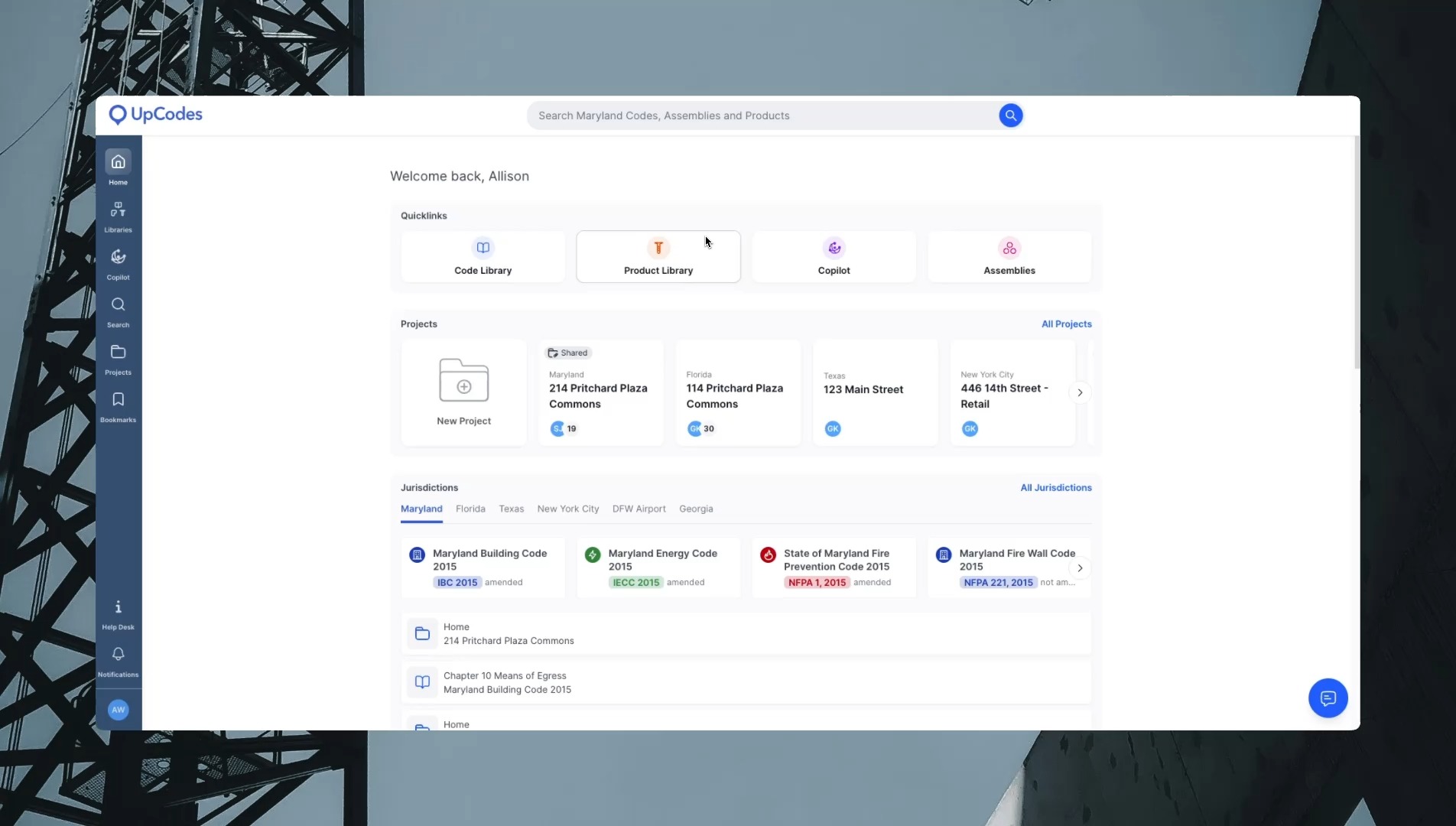
Try it: Open any page in UpCodes and select your account menu at the bottom of the left navigation.
Choose which notification emails you receive
During a large Plan Review, a teammate may receive dozens of assignments and mentions in one session. Each assignment and comment sends an email, which can bury the notifications that matter.
You can now turn off email notifications for Plan Review comments and Plan Review assignments. These options sit alongside the existing setting for specification suggestions, so you can manage all three in one place. Notifications stay on by default.
Turning off assignment emails doesn’t change what’s assigned to you. You can still find those findings with the Assigned filter in Plan Review.
Try it: Open your account profile, go to your notifications settings, and turn Plan Review comment or assignment emails on or off.
Plan Review
Review drawings for constructability
Not every problem in a drawing set is a code violation or a clash between disciplines. Some conditions look workable on paper but are hard to build, such as equipment with no path to its final location, an installation sequence that would require removing finished work, or a detail with tolerances that are unrealistic in the field.
Constructability is now available as an analysis type in Plan Review. It reviews the drawing set for conditions a general contractor, construction manager, or experienced reviewer would typically flag before construction starts, including:
- Installation constraints and construction access
- Sequencing and trade installation conflicts
- Details that are difficult to execute or not detailed enough to build
- Equipment that can be installed but not reasonably serviced or replaced
- Repeated conditions that could cause field coordination problems if unresolved
Constructability focuses on whether the documented design can be built efficiently and realistically. Code requirements, conflicts between disciplines, and differences between drawings and specifications are covered by Code Review, Discipline Coordination, and Specification Coordination.
For example, a preconstruction team reviewing a set before GMP can run a Constructability Review to surface access and sequencing concerns, then raise them with the design team while the documents can still change.
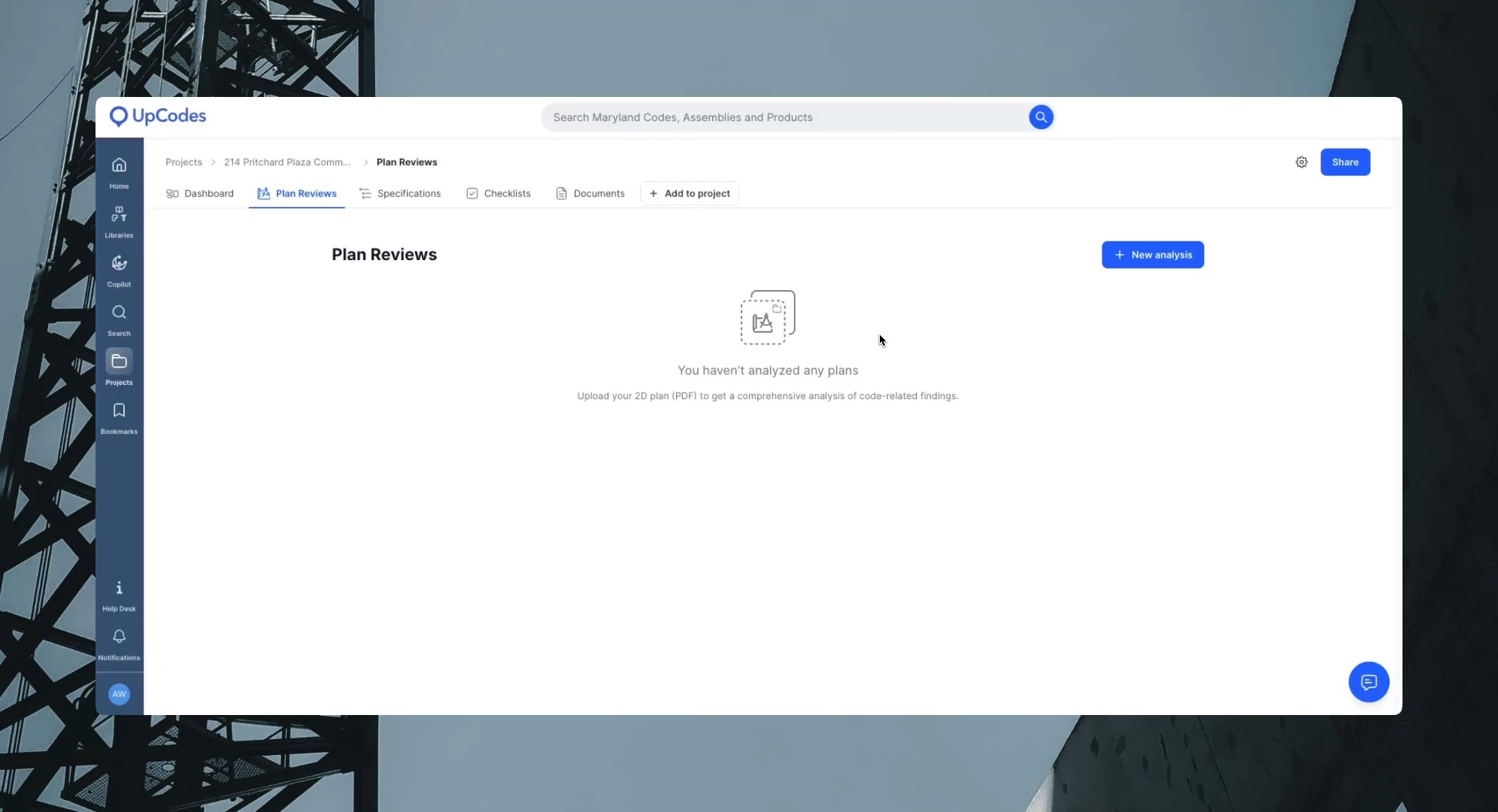
Try it: Start a Plan Review and select Constructability as the analysis type. Run it on its own or together with other analysis types.
See visual explanations in findings
Some findings are easier to understand in a drawing than in a paragraph, such as a clearance, a dimension, or how two elements meet.
When a visual would help, Plan Review now adds one to the finding. It can be an annotated excerpt from your uploaded drawings or a simple diagram, using arrows, highlights, labels, and dimensions to show the condition being flagged and what needs to change. Missing information findings don’t include visuals.
Visuals are included in your exports by default, with an option to leave them out. That option appears only when a review has visuals.
For example, a project architect can send a finding to a consultant and show the condition at a glance, rather than describing which edge of which detail the finding refers to.
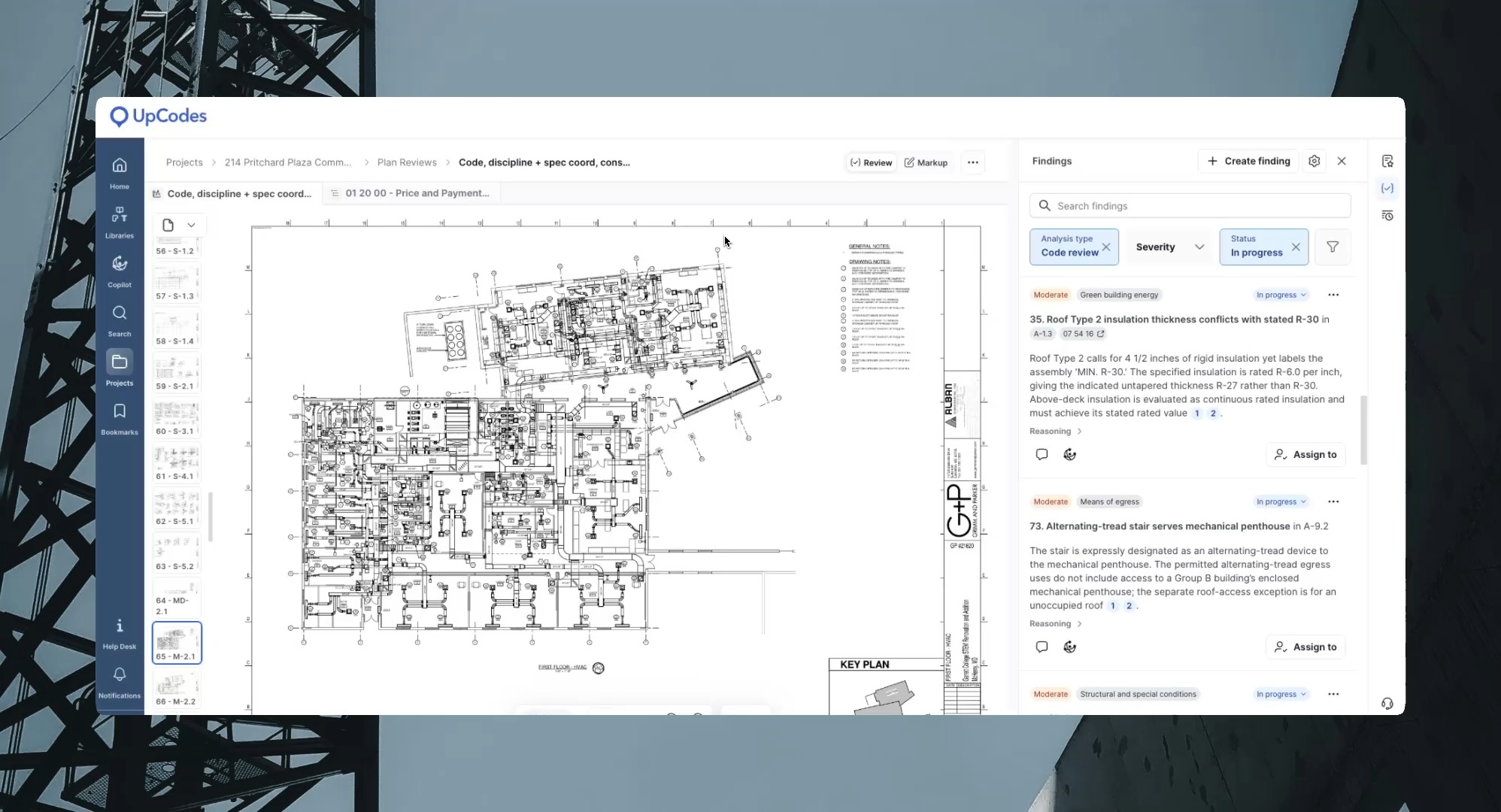
Try it: Run a new Plan Review and look for findings with a visual explanation.
Track, filter, and respond to findings
Four updates make it easier to work through a review.
- Create your own statuses. Add custom statuses beyond the built-in options, such as “Sent to consultant” or “Owner decision,” and filter findings. Custom statuses are shared across your account. Project editors and owners can create, edit, and assign them.
- See every analysis type in one review. When you run multiple analyses together, the findings now appear in a combined review on your Plan Reviews page. Use the Analysis type filter to focus on a specific analysis or filter your exports accordingly.
- Show compliant findings with a toggle. Compliant findings now have their own Show compliant findings toggle in the filters, next to Show missing information. It’s off by default, and the Status filter now lists only statuses.
- Give feedback on a finding. Open a finding’s three-dot menu and select Provide feedback to tell us what was useful or where it fell short. Your feedback goes to the UpCodes team and helps us improve Plan Review.
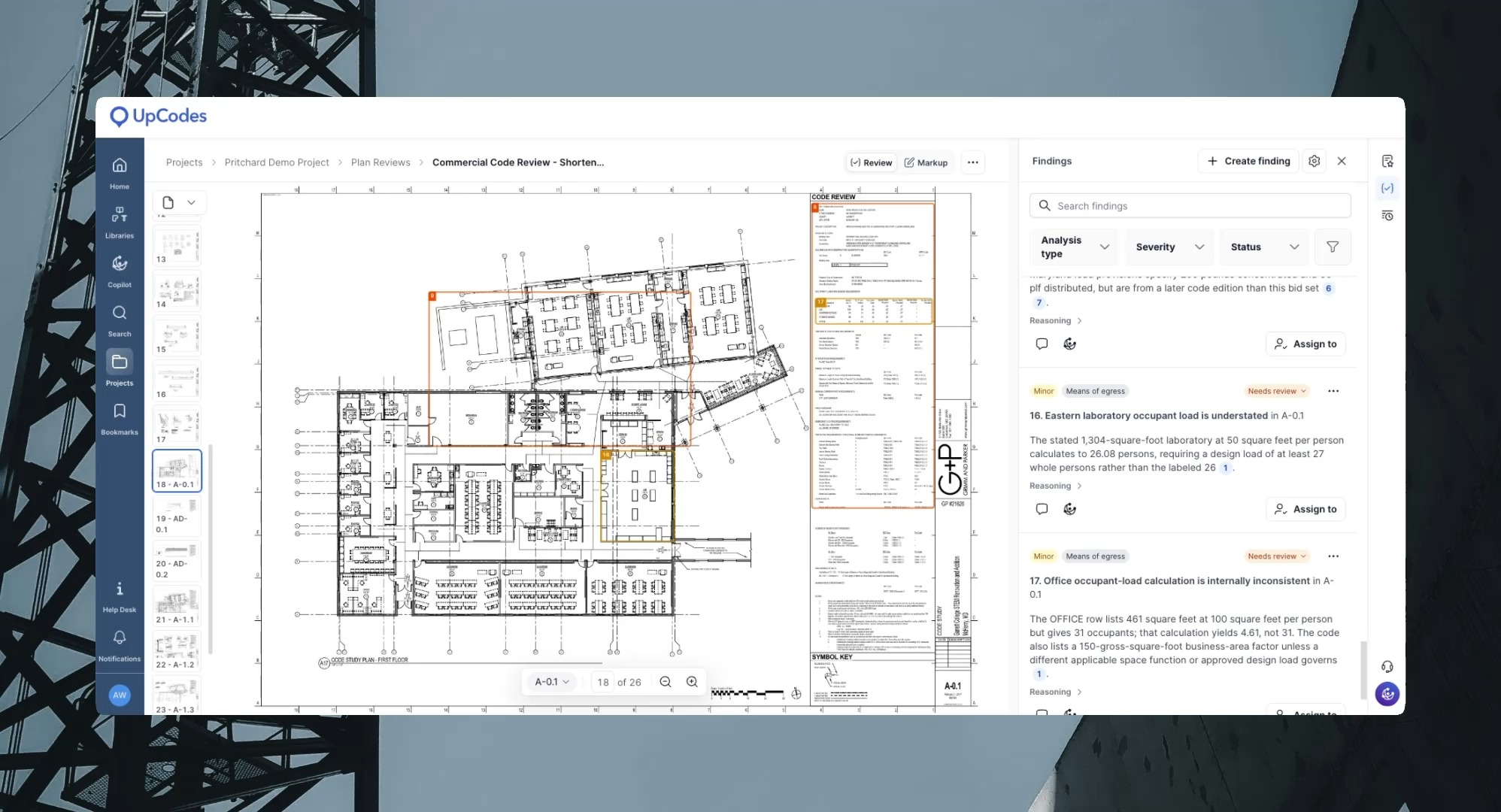
Try it: Open a completed Plan Review. In the findings filters, choose an analysis type or turn on Show compliant findings. To add a custom status, click the status dropdown within any finding and choose Add or manage statuses. Open a finding’s three-dot menu to give feedback.
Specifications
Add products without a manufacturer guide spec
Until now, you could add a product from the Products library to a specification only if its manufacturer had published a guide spec. Many products don’t have one, so specifiers who had already chosen a product had to write it into the spec by hand.
When you add a product to a specification, you can now choose how to include it. Import the manufacturer guide spec when one is available, or add the product as a line item in Part 2 – Products. When no guide spec exists, UpCodes adds the line item for you.
The line item goes under 2.1 Materials, which UpCodes creates if your section doesn’t have one. It includes the manufacturer, a reference to the product, and the options you selected, set up as dropdowns you can adjust. You’ll see a preview before anything is added.
The line item reflects your selections when you add it. It isn’t linked to the product page afterward, so later edits happen in the spec as usual.
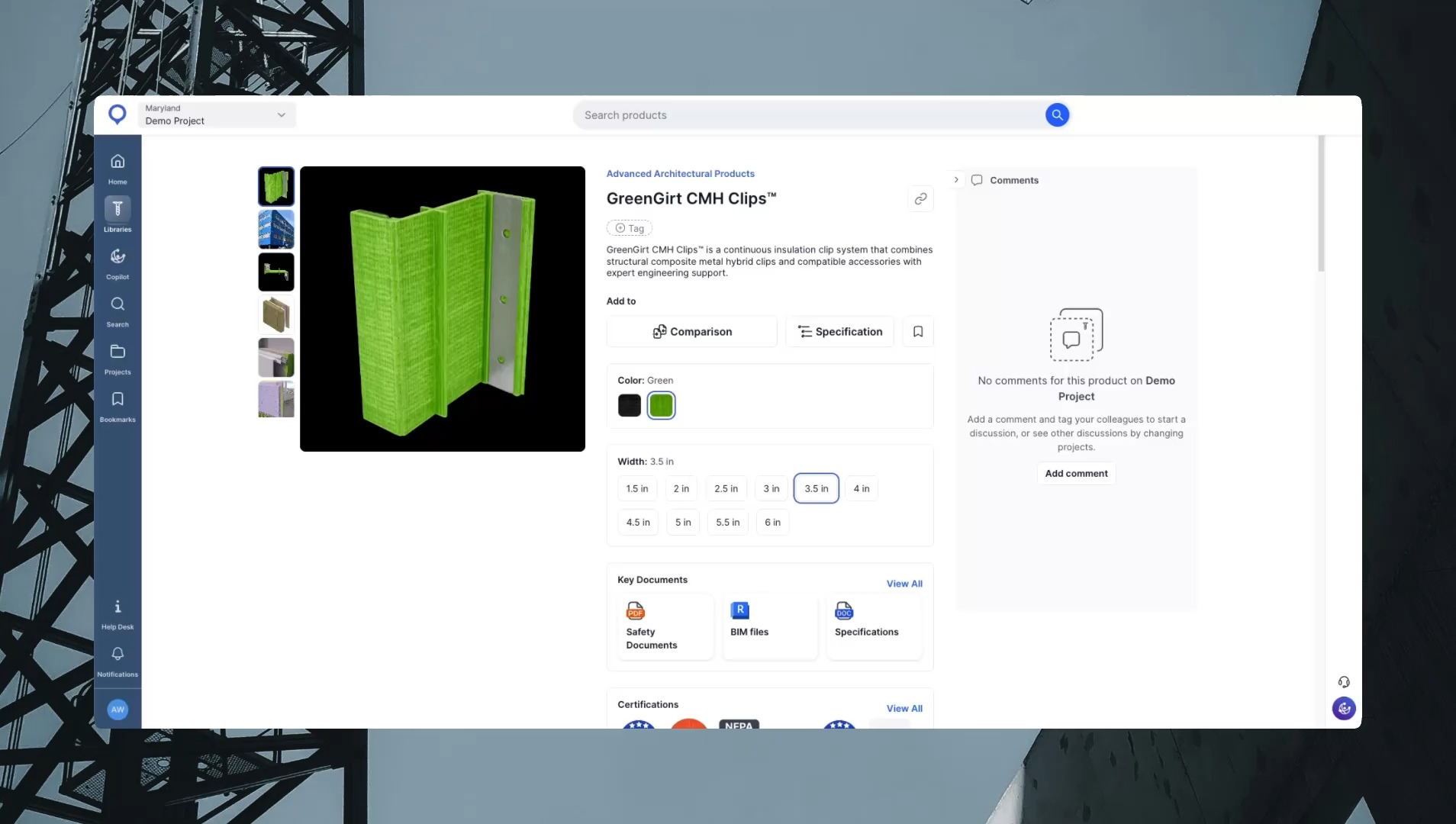
Try it: Open a product in the Products Library, choose its options, and add it to your specification. Choose whether to import the guide spec or add the product to Part 2, review the preview, and confirm.


