Release Roundup | November 12, 2026

General updates
Simpler project navigation
Projects can contain plans, specifications, documents, checklists, and more, but most teams don’t use every workflow on every project.
Project navigation now shows the parts of UpCodes that are relevant to the work your team is doing.
Instead of displaying every available tool in a left-hand menu, projects now use tabs across the top of the page. Tabs appear as you use different tools, so a project with only Specifications stays focused on specs, while one using both Specifications and Plan Review makes both available up front.
You can also add workflows ahead of time using Add to project or the What will you use this project for? section on the project dashboard.
Breadcrumbs now appear throughout the project experience, too. They show where you are in the project and give you a quicker way back to the specification or plan review without retracing your steps.
This keeps each project focused on the tools you need without filling the interface with ones you aren’t using.
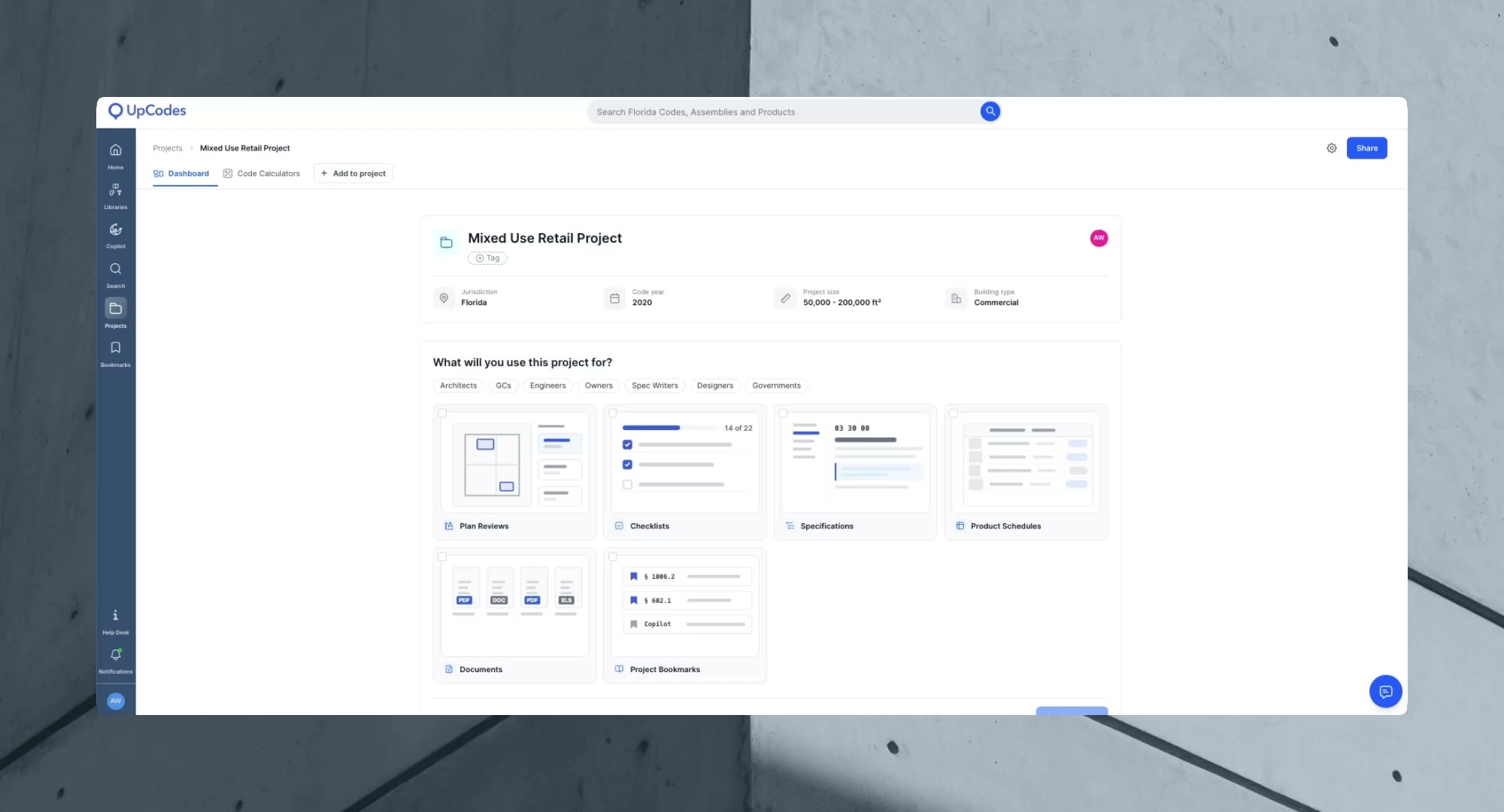
Try it: Open one of your projects to see the new navigation. Select Add to project when you want to bring another UpCodes workflow in.
Plan Review
Mark up drawings during review
Reviewers often notice things a generated finding doesn’t capture, such as a dimension to verify, a detail to coordinate, or a note for a consultant. Until now, recording that on the drawing meant switching to a separate markup tool.
Plan Review now has Markup Mode in the drawing viewer. Add rectangles, arrows, text, and revision clouds, or freehand draw. Change colors and set the opacity to your liking. You can select several shapes at once, copy and paste them, move a shape in front of or behind another, and hide markups when you need a clear view of the sheet.
Your markups are saved to the drawing and appear with your findings when you review the sheets. When you export an annotated plan, you can choose whether to include markups, finding locations, or both.
For example, a QA/QC reviewer can cloud a revised area, point an arrow at a detail that needs coordination, add a short note, and export the annotated plan for the project team with the findings on the same sheets.
Markups are included only in annotated plan exports. They aren’t added to RFIs or other export formats at this time.
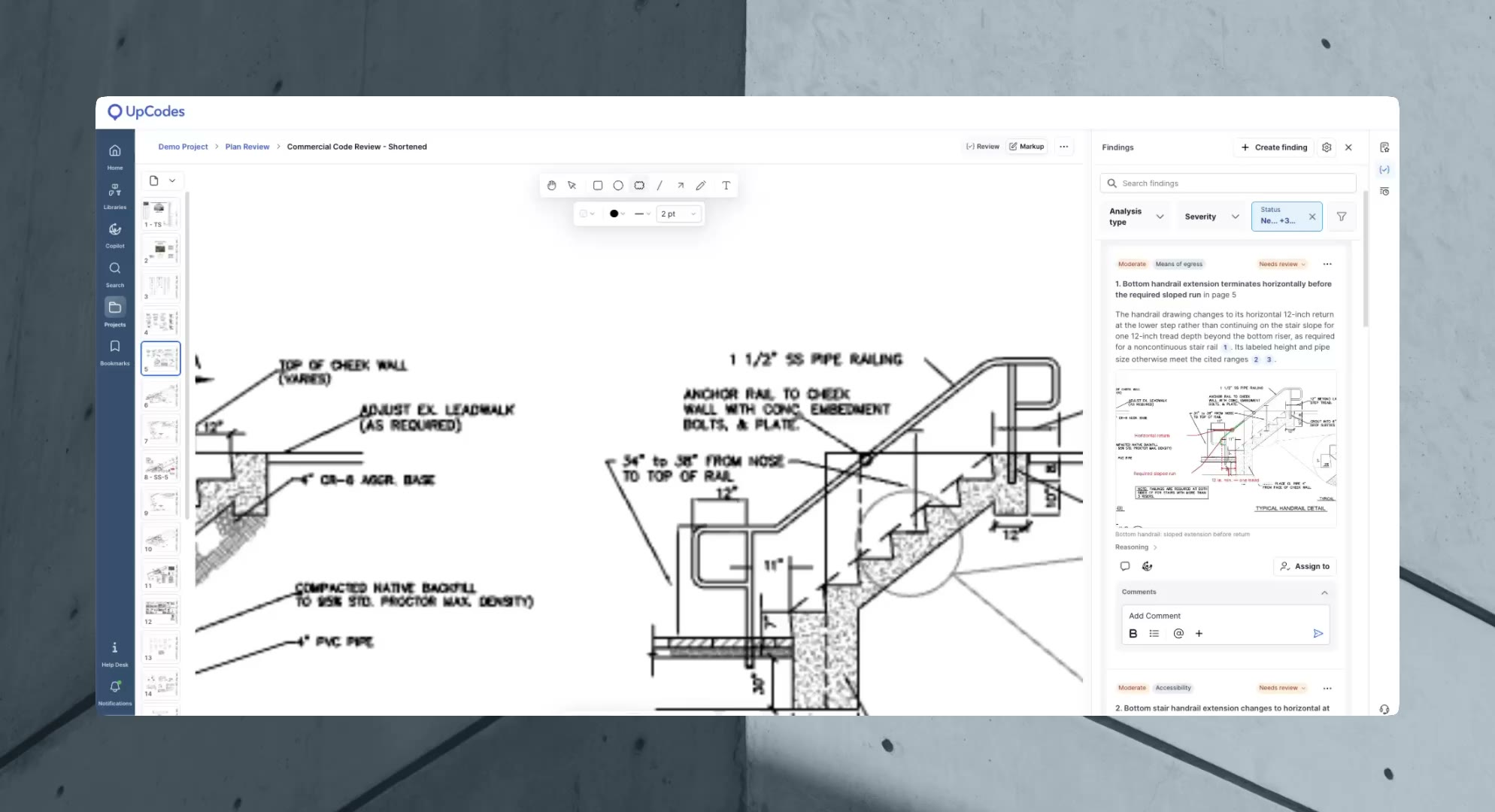
Try it: Open a drawing in Plan Review and select Markup at the top right of the viewer. Choose a shape from the toolbar and draw it on the sheet. To share your markups, export the review as an annotated plan and select Include markups.
More focused findings
A useful review isn’t necessarily about the volume of findings but about how precise they are and how easily your team can act on them.
These three updates help determine which findings appear in your review and how they're evaluated.
First, Plan Review now assigns each potential finding a severity score to determine whether it's minor, moderate, or critical. It also applies a higher confidence threshold before a finding appears in your review.
Next, Missing Information findings, which flag details the review couldn’t locate in the drawings, are now unselected by default and left out of your finding counts. That information often lives on another sheet, in a related discipline’s set, or in the specifications. You can select these findings when you want to check whether anything is missing.
Finally, Plan Review now pulls the project phase from your drawings and adjusts the level of design completeness it expects. A schematic design set is reviewed for what should be resolved at that stage, rather than against construction document detail. If you’ve been adding the phase to a custom prompt, you no longer need to. When the drawings don’t indicate a phase, the review runs as it did before.
For example, a technical reviewer preparing a set for issue can work through critical and moderate findings first, then select Show missing information findings to check for gaps before the documents go out.
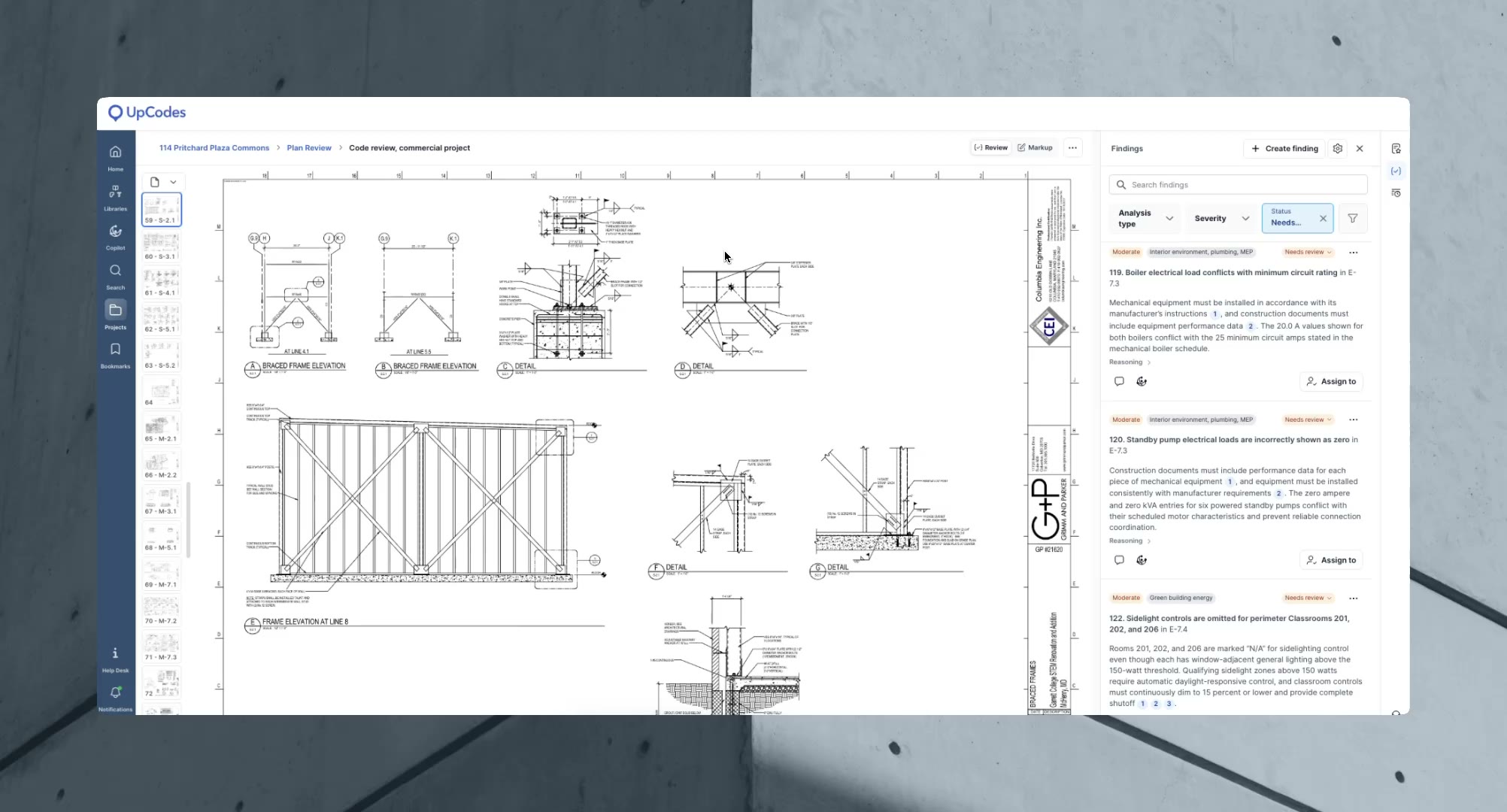
Try it: Take a previously run plan set and start a new analysis. Compare findings by their severity category across runs to see what’s changed. Reveal findings hidden by default by opening the findings filter and selecting Show missing information findings.
Get around plan sets faster
In a large plan set, locating the sheet or specification referenced in a finding can take more time than reviewing it. So can pointing a colleague to the right finding.
Three changes shorten these steps:
Go to a sheet by number. In the drawing viewer, enter a sheet number, such as A101 or M2.01, to jump directly to it without having to find its PDF page number.
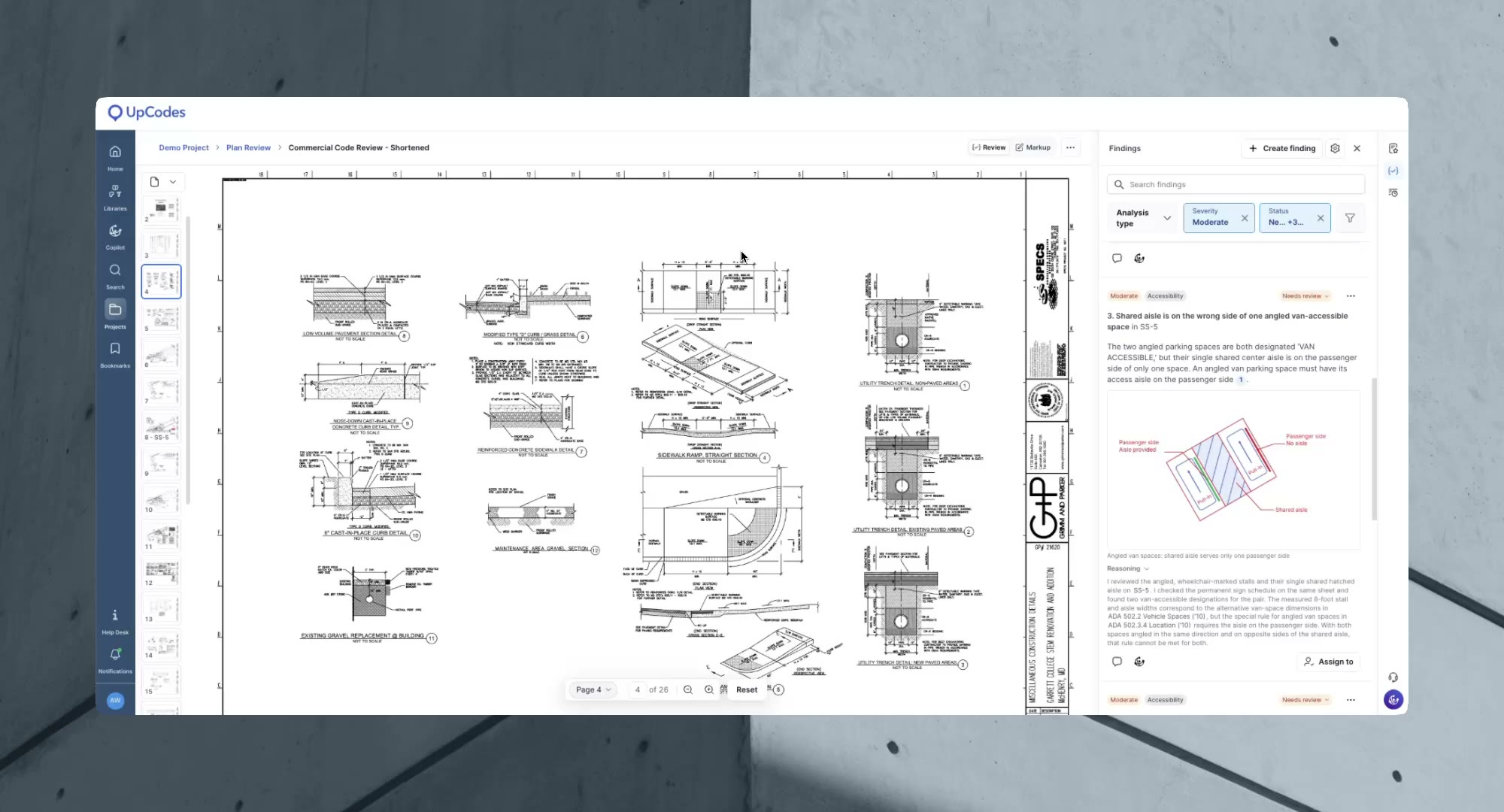
Open references from a finding. References in a finding’s reasoning are now links. Select a code section, sheet number, or specification section to check the source.
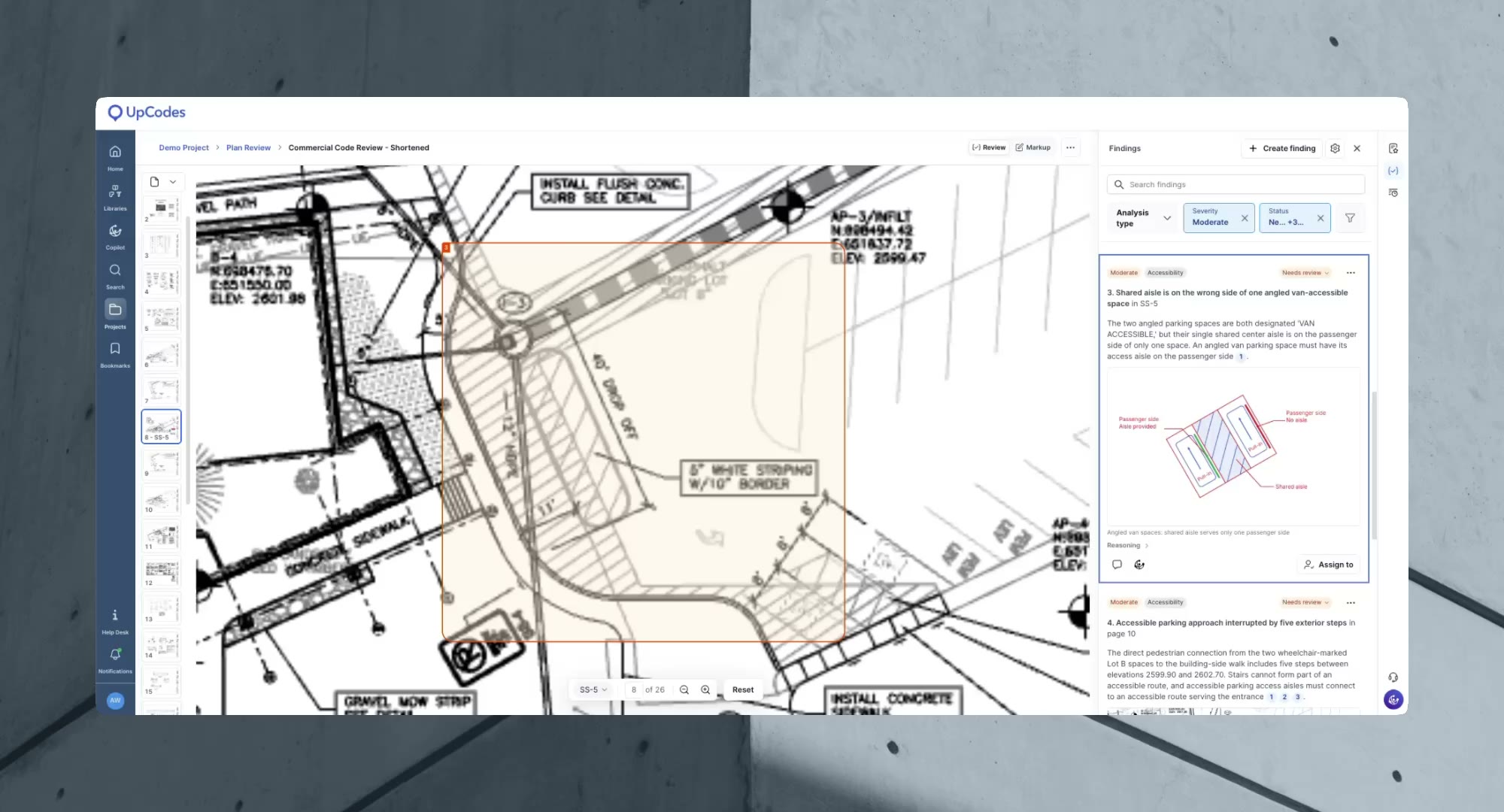
Refer to findings by number. Each finding now has a consistent number across the Plan Review viewer and exports. Findings are numbered by severity, with finding 1 representing the most critical.
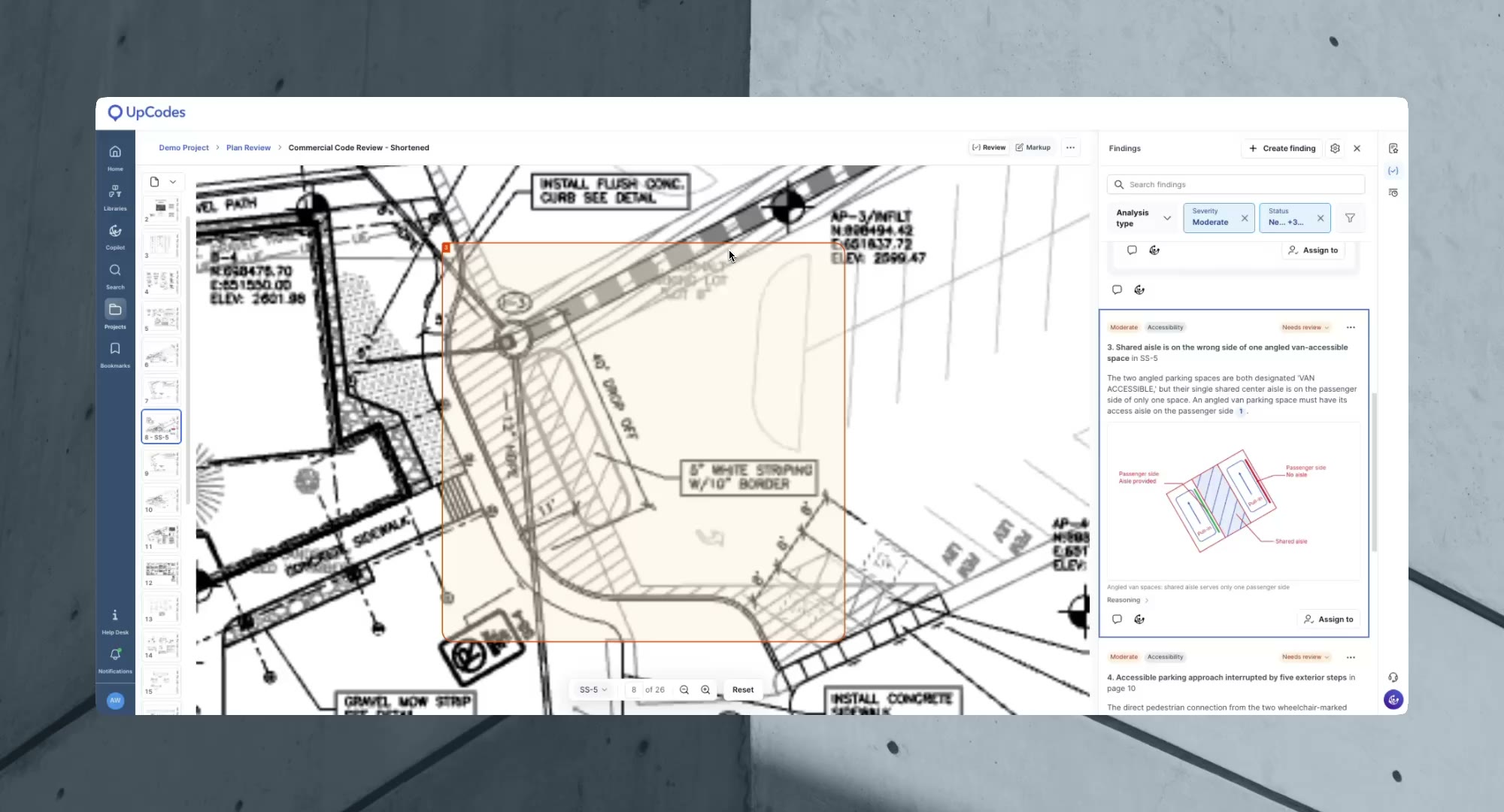
For example, a project manager on a call with a consultant can point to finding 14, open the specification section its reasoning cites, and jump to the related sheet without hunting for it.
Try it: Select a completed Plan Review and open the sheet selector at the bottom of the viewer. Enter a sheet number to go to that sheet. Then open a finding and select a linked reference in its reasoning.


