Release Roundup | October 29, 2026

Plan Review
Look for cost-saving opportunities with Value Engineering Review
Value engineering often starts with a straightforward question: Are there parts of the design that go beyond what’s required in ways that could add unnecessary cost?
Plan Review now includes Value Engineering as a review type focused on identifying meaningful opportunities to reduce cost where the design may exceed what the applicable codes require.
This first version is specifically focused on value engineering from a code-compliance perspective. It does not currently recommend alternative products or materials based on price. We plan to expand the workflow to support more product-selection opportunities in the future.
The review gives teams a starting point for discussing where added cost serves the project’s goals and where it may warrant another look.
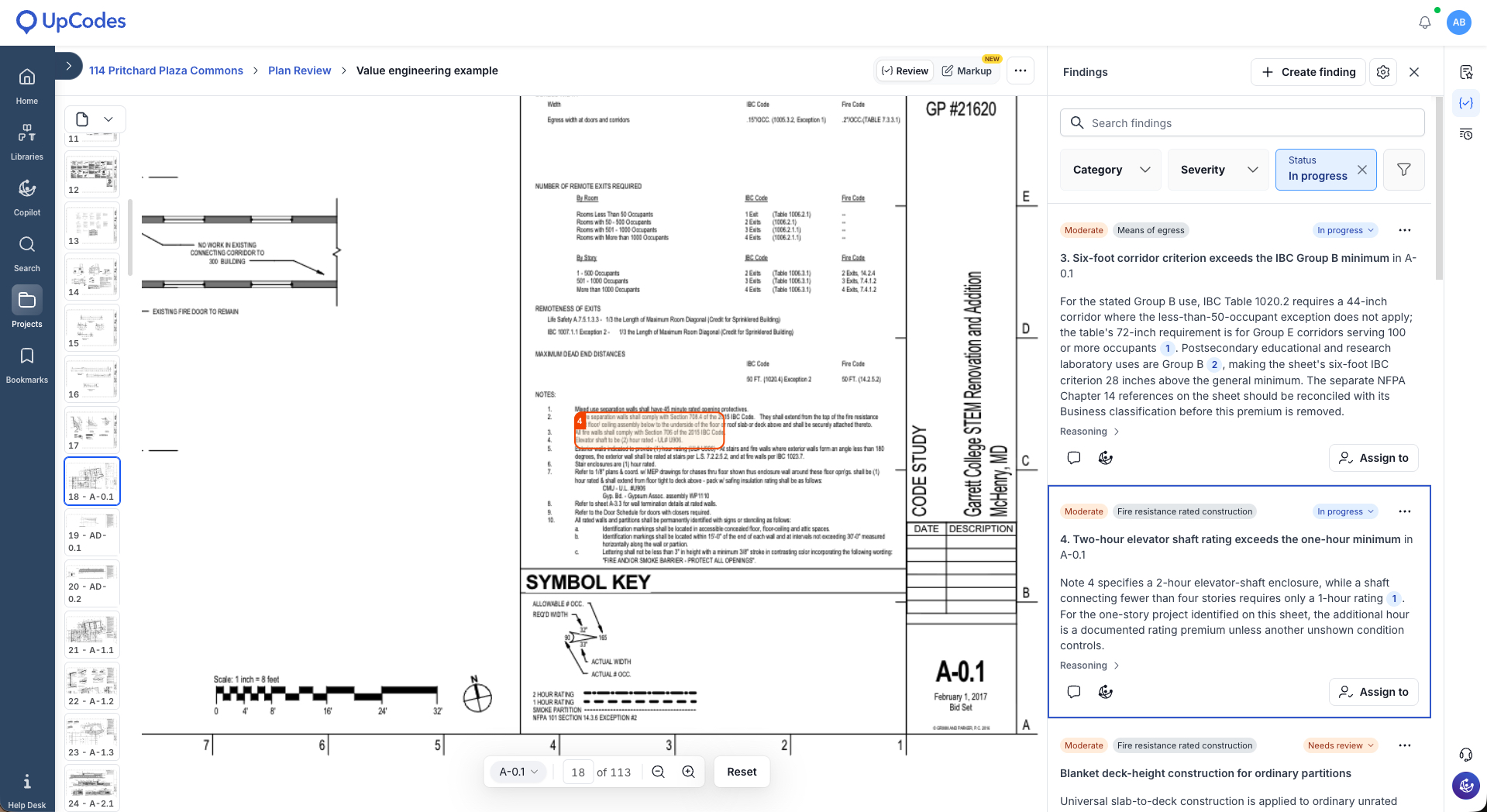
Try it: Start a Plan Review and include Value Engineering in the analysis types you want to run on the project.
Manage RFIs directly from Plan Review
A Plan Review finding often needs to move beyond the issue list and into the project’s broader coordination workflow.
You can now turn Plan Review findings into RFIs and export them in two formats:
- An RFI log containing the RFIs created from the review
- Individual RFIs with the finding details and the relevant drawing included
When the same issue has been grouped across multiple locations, Plan Review creates one RFI for the group and includes each location where the condition was identified. Individual RFIs also include the relevant sheet with the issue location highlighted, giving the recipient the drawing context needed to evaluate the question.
This first release focuses on creating and exporting RFIs from Plan Review. Over time, we plan to expand RFI management within UpCodes so teams can manage more of the workflow in the same ecosystem rather than only handing it off through an export.
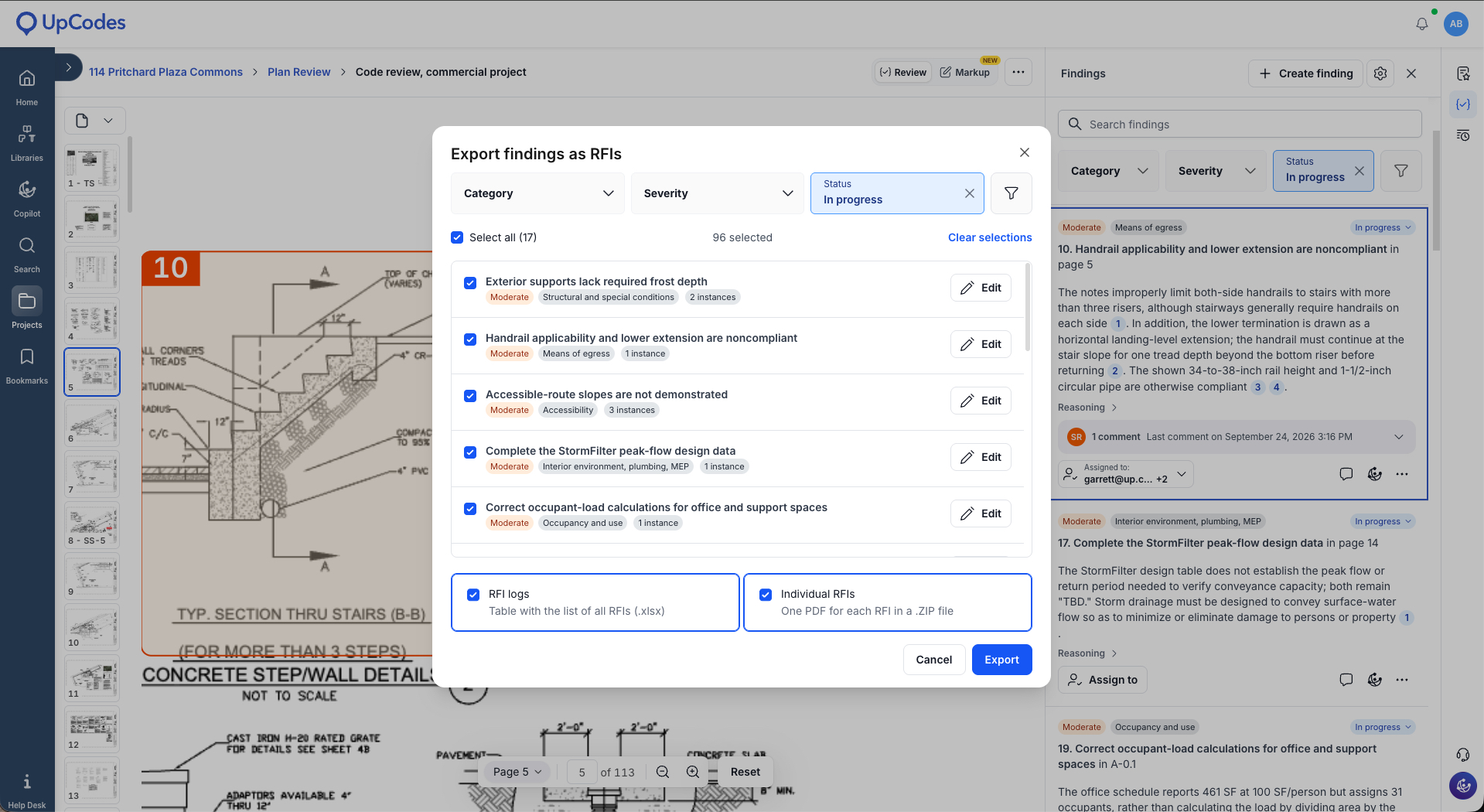
Try it: Select a Plan Review finding or issue group and create an RFI. Export an individual RFI when you need to send a specific question, or use the RFI log when you need to hand off several at once.
Include specifications in Code Review
Code requirements aren’t documented only in the drawings. Important project information may also live in the specifications.
You can now include a specification when running Code Review, giving Plan Review access to both the drawings and spec content as it evaluates the project against the applicable codes.
This gives the review additional project context and lets teams bring two major parts of the construction documents into the same code-compliance workflow rather than evaluating them completely independently.
Adding a specification is optional for Code Review. When included, the spec is used to inform the Plan Review analysis; findings continue to live in Plan Review rather than creating separate issues inside Specifications.
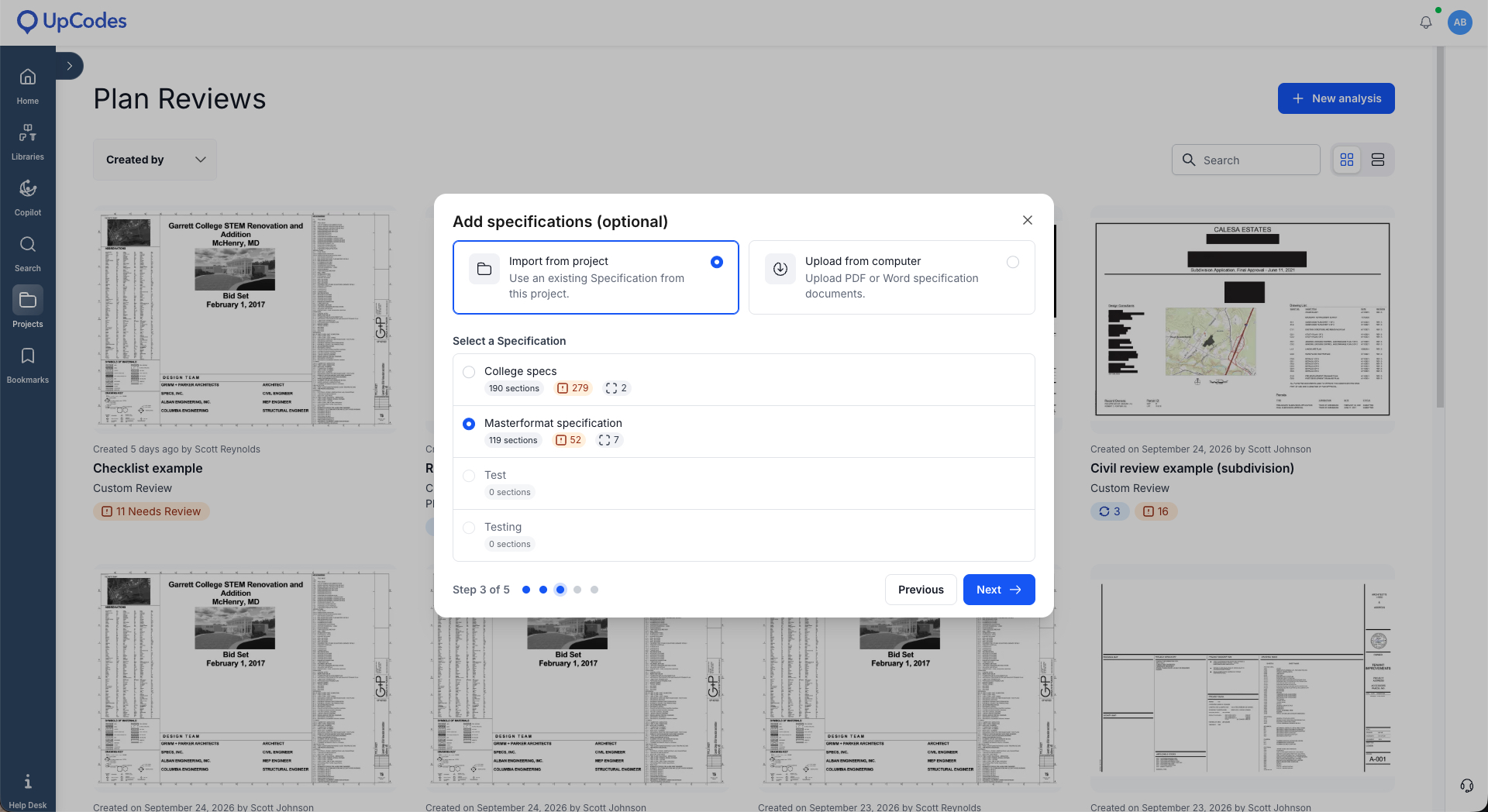
Try it: Include your project specification when setting up a Code Review to bring both the drawings and spec content into the analysis.
Specifications
Keep custom cover sheets when importing specs
If your existing specification already has a project-specific cover sheet, you shouldn’t have to rebuild it after bringing the document into UpCodes.
When a custom cover sheet is included in an imported specification, UpCodes now brings that cover sheet in with the rest of the document and preserves it as a custom cover page.
That means more of the original project manual carries through the import process, reducing the cleanup needed before you can continue editing and exporting the specification in UpCodes.
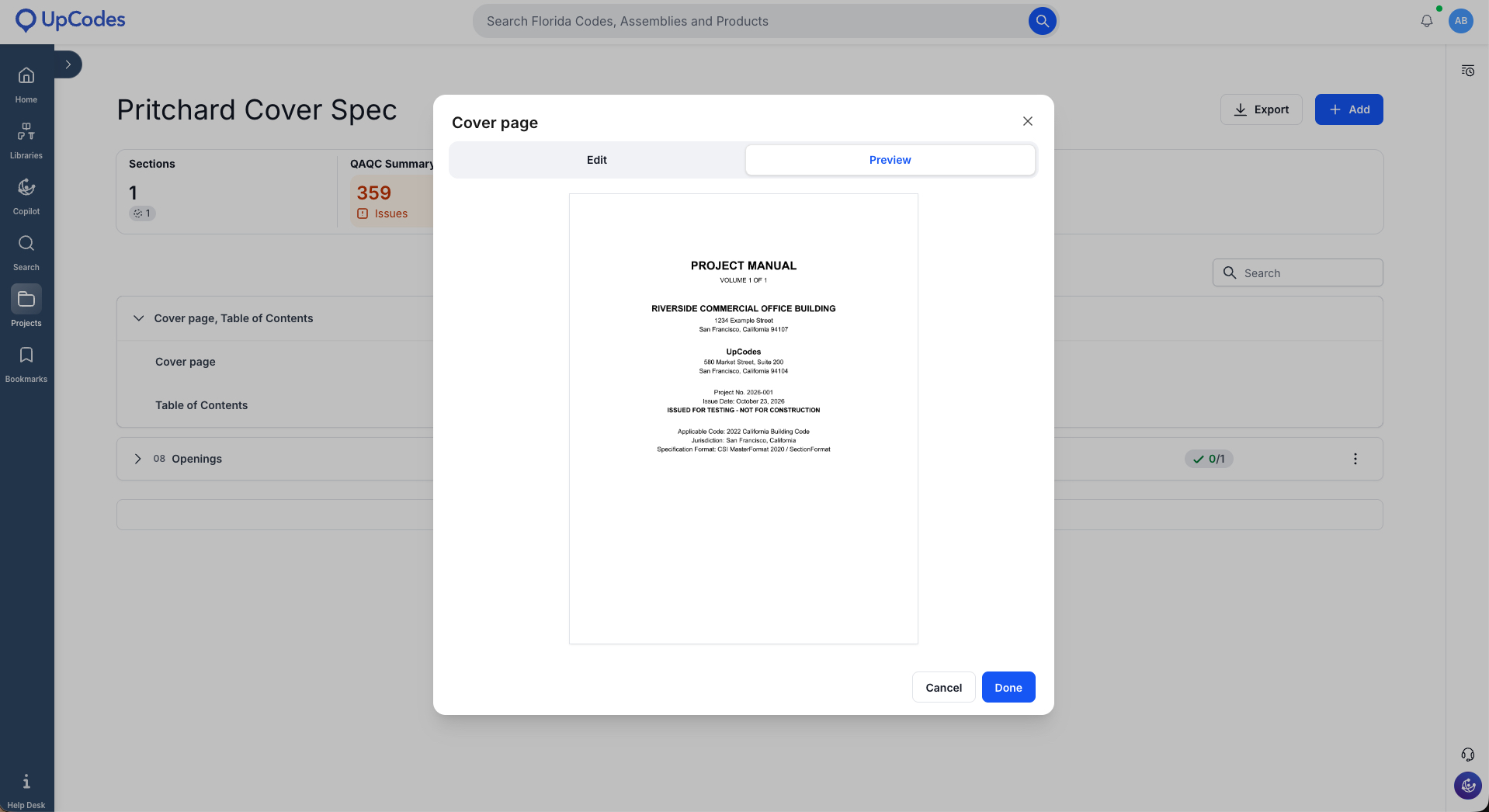
Try it: Import a specification that includes its own cover sheet, then open the cover page settings to view and preview the imported cover.
Manufacturer guide specs in Templates
You can now find building product manufacturer guide specifications directly in the Specs Templates library.
Manufacturer guide specs appear alongside other available templates, making it easier to start from product-specific specification content without leaving your specs workflow to locate the source document elsewhere.
The Templates filters also work across these guide specs, so you can narrow the library to find the relevant section or product more quickly.
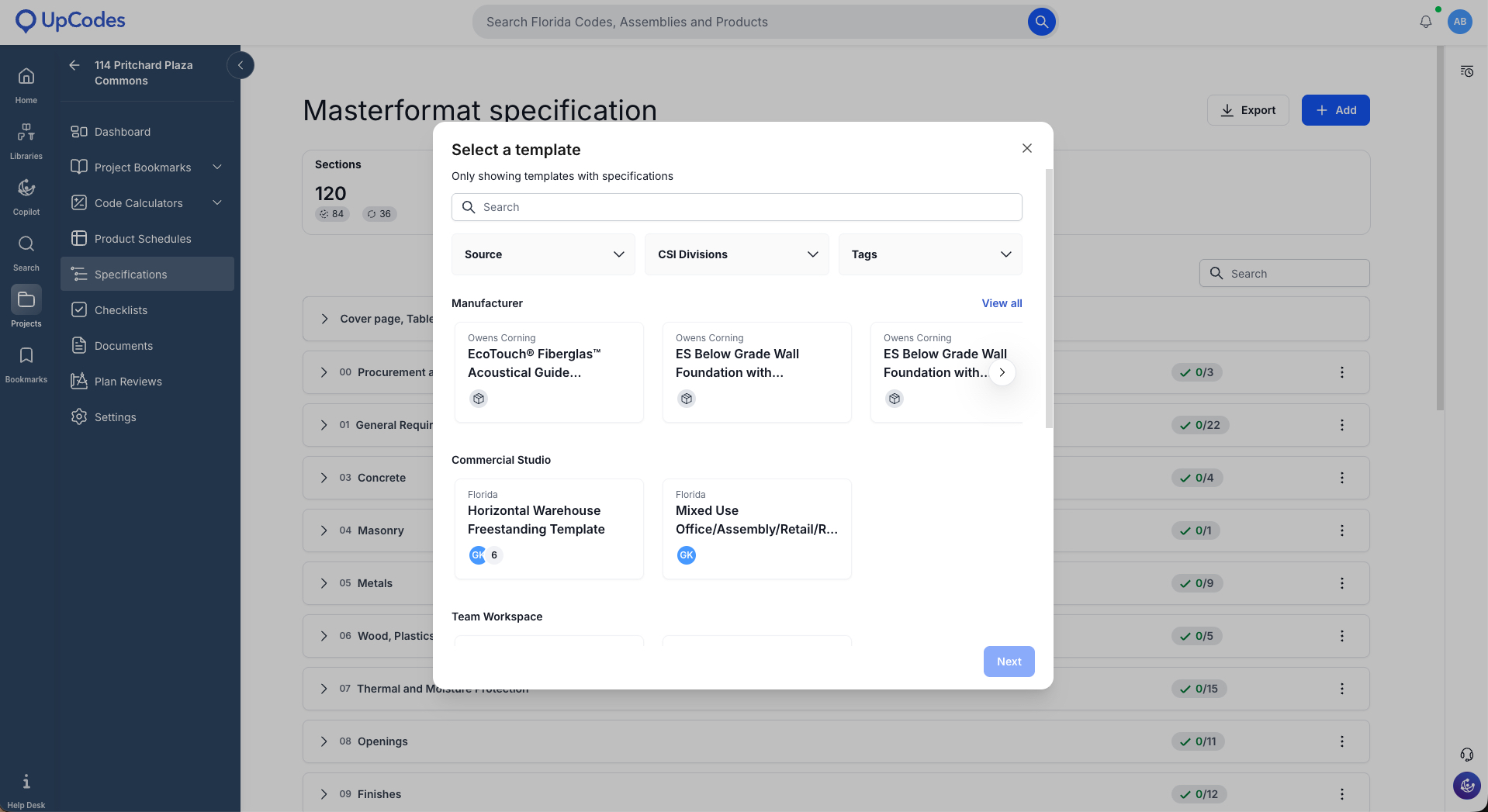
Try it: Open the Templates modal in Specifications and browse or filter the manufacturer guide specs available for your section.


