Release Roundup | October 1, 2026
.png)
New ways to summarize, organize, and investigate your Plan Review
This release makes Plan Review easier to understand at a glance and work through in detail, with a new Executive Summary, code references in custom issues and comments, discipline-based issue filtering, and more flexible ways to give Copilot drawing context.
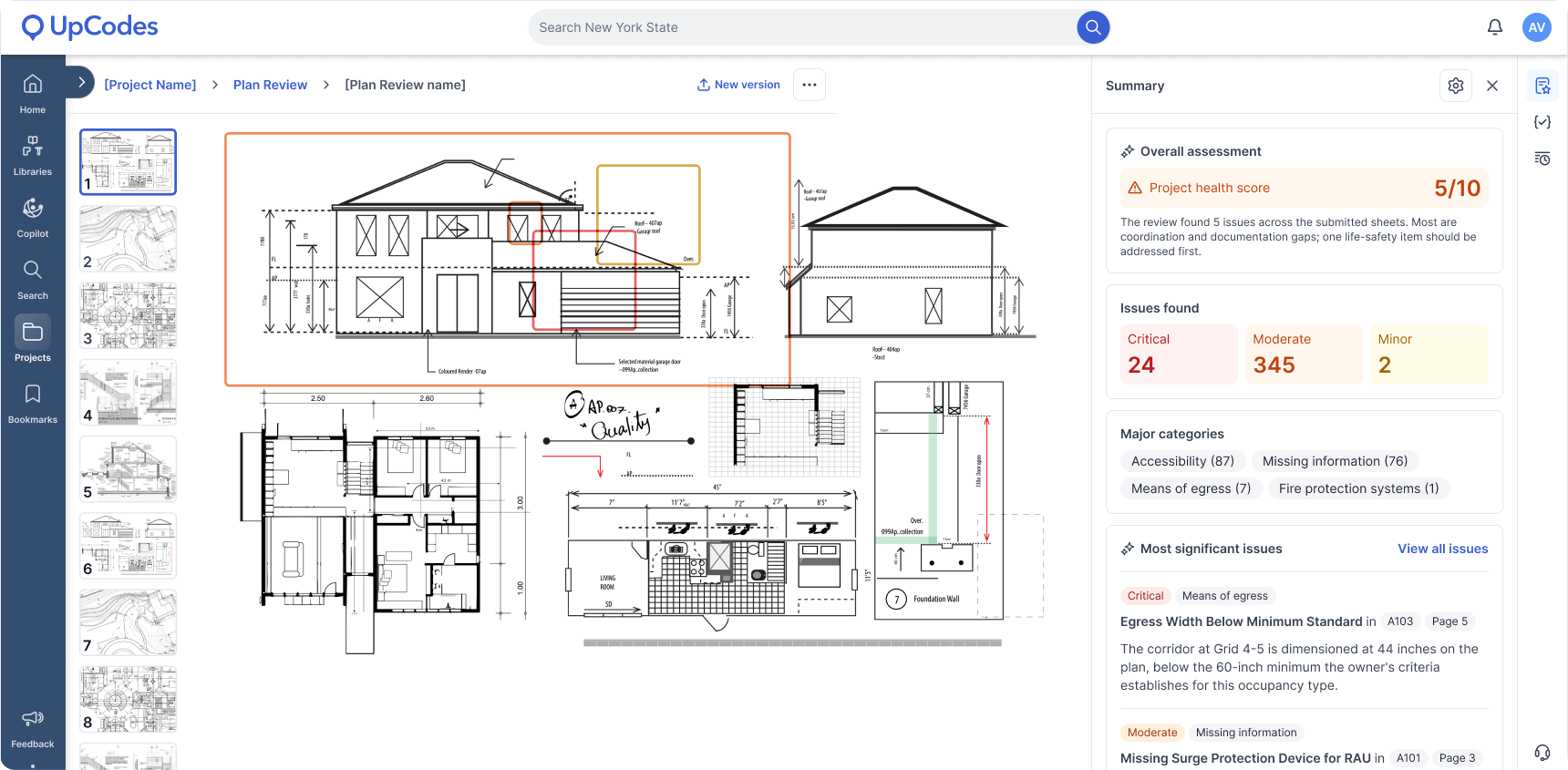
Start with an Executive Summary
A detailed issue list is useful when you're ready to work through individual findings. But before you get there, you often need answers to bigger questions: How is the project doing overall? Where are the biggest risks? What should the team focus on first?
Plan Review now provides an Executive Summary that gives you a high-level view of the project before you start working through the full issue list.
The summary brings together the overall assessment, key findings, and major issue categories so you can quickly understand the state of the project. When you're ready to investigate further, you can use these findings and categories as entry points into the underlying issues.
The Executive Summary is also included in exports, making it easier to share both the high-level overview and the detailed issue log with project stakeholders.
Try it: Run a new Plan Review to start with the Executive Summary, then use the key findings and categories to move into the issues that need a closer look. Export the review when you need to share the same overview outside of UpCodes.
Add code references to custom issues and comments
When you create a custom issue during a review, you can already include the context your team needs to evaluate and resolve it.
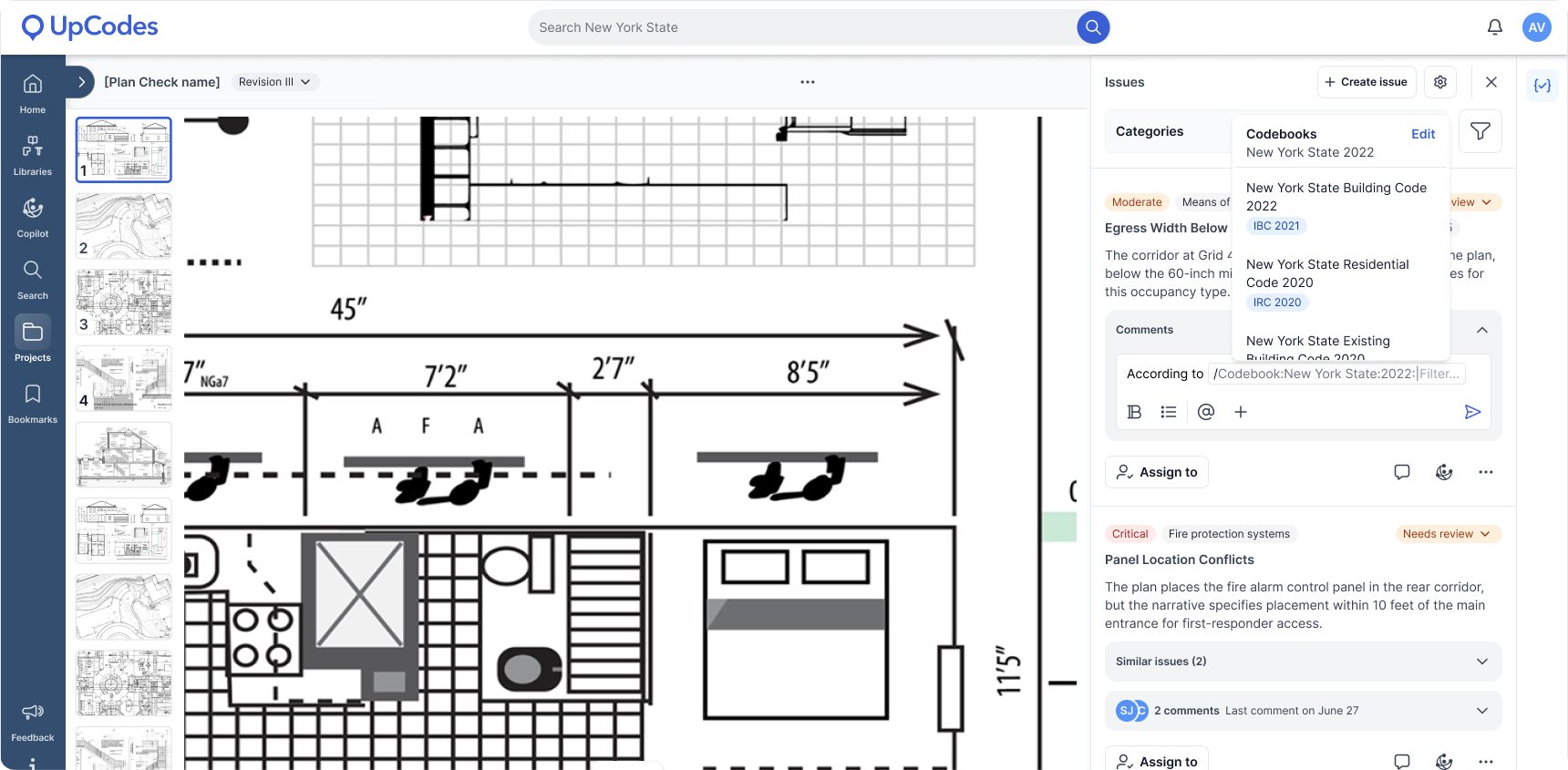
Now, you can also reference specific codebooks and code sections in a custom issue's description or in a comment on an existing issue.
That means your team's own findings and discussions can point directly back to the applicable source requirement, instead of relying on manually typed references or separate links.
This keeps the reasoning behind a decision in the same place as the issue itself, giving reviewers and collaborators more context when they return to the finding later.
Try it: Create a custom issue or add a comment to an existing issue, then add the relevant codebook or code section to connect your note directly to the source requirement.
Filter issues by discipline type
Large drawing sets often involve multiple teams, and each person may need to work only on the findings relevant to their discipline.
You can now filter Plan Review issues by discipline type to focus on findings associated with specific sets of drawings, such as Architectural, Electrical, Mechanical, Structural, or Civil.
The available filters are based on the drawing prefixes in your plan set. If Plan Review can't identify a prefix, those pages are grouped under Other. Findings that reference pages across multiple disciplines, such as cross-discipline issues, appear under each relevant filter.
This lets you narrow a large review before working through it yourself or handing off the findings to the team responsible for resolving them.
Try it: Open the issue filters in Plan Review and select a discipline type to narrow the list to the findings associated with that set of drawings.

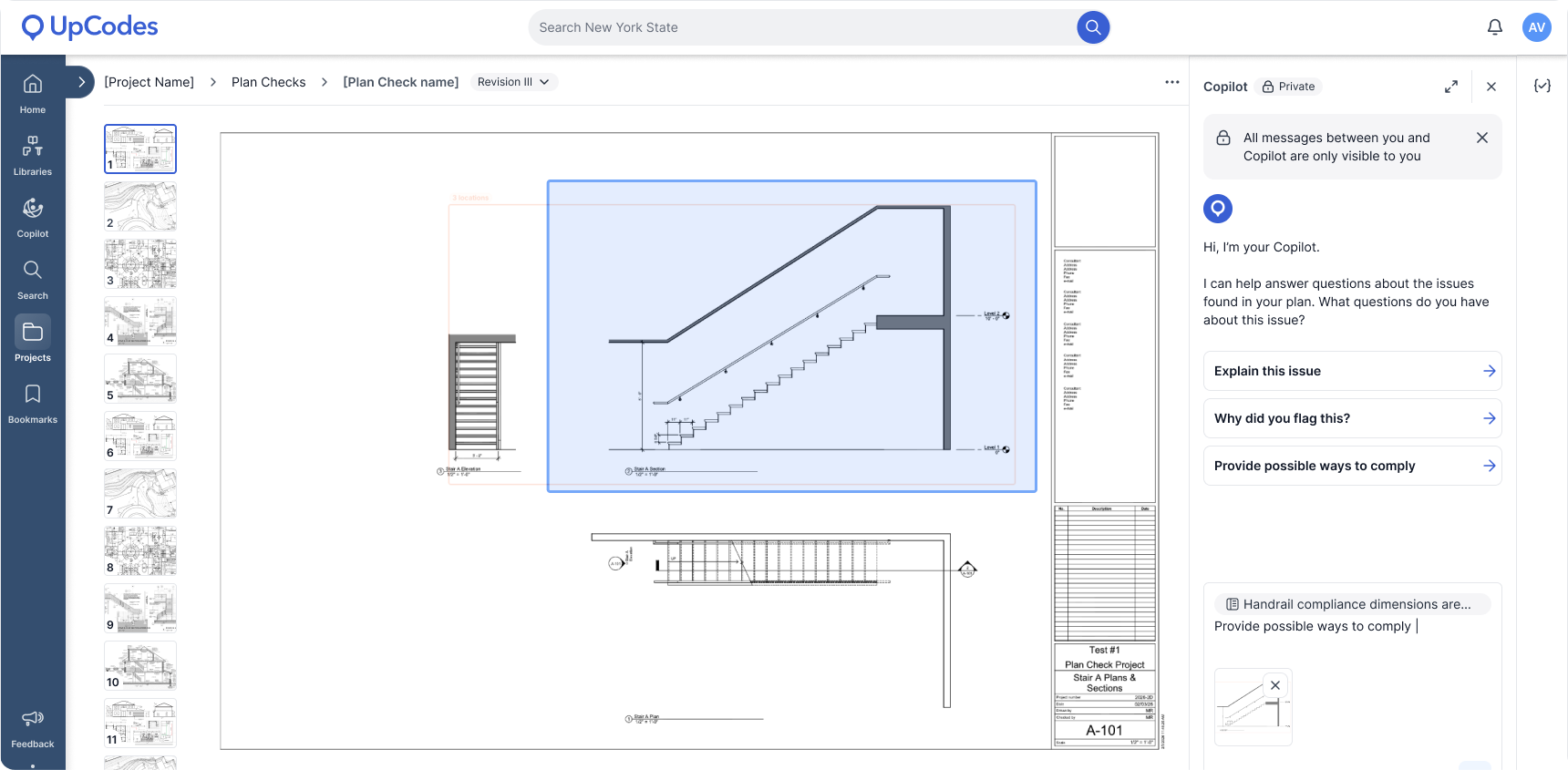
Ask Copilot about any area of a drawing
Sometimes the question you want to ask Copilot isn't tied to an issue Plan Review has already identified.
You can now select an area directly on a drawing and share it with Copilot as additional context for your question.
This lets you investigate areas of the plan beyond identified issues. You might want to ask about an area that isn't associated with an existing issue, compare conditions across different parts of the drawing, or give Copilot more visual context than an individual issue provides.
Instead of describing the location manually, you can show Copilot which part of the drawing you're asking about.
Try it: Select an area of the drawing using the same interaction you use to create a custom issue, share it with Copilot, and ask a question about the selected condition.