Release Roundup | September 3, 2026
.avif)
More flexible Specifications workflows and a more focused Plan Review process
This release gives Specifications teams more control over QA/QC and project manual exports, while making it easier to re-run Plan Review after targeted changes, work through repeated findings, and investigate individual issues with UpCodes Copilot.
Specifications
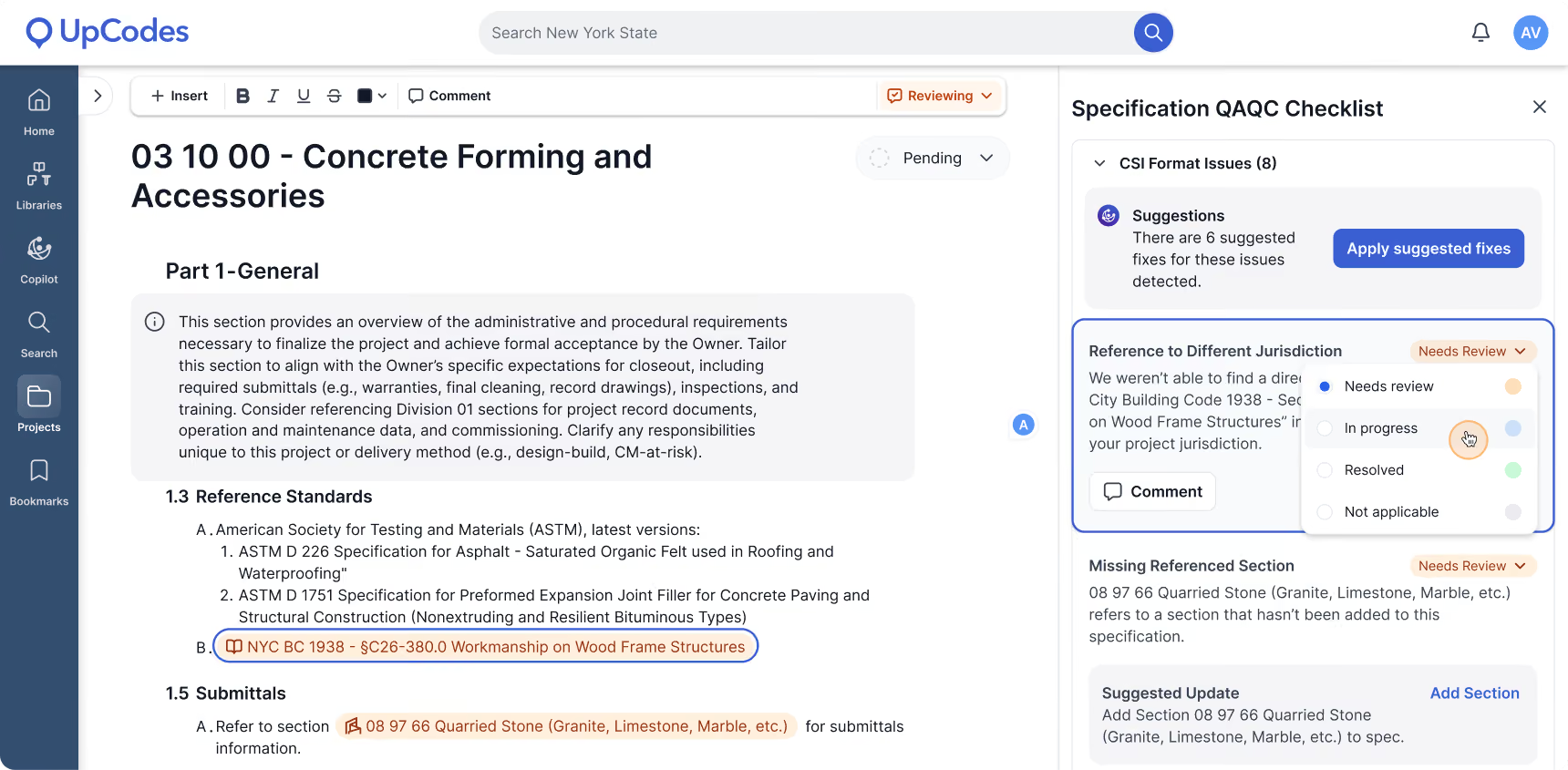
Track QA/QC issues with more flexible statuses
Specifications QA/QC checks help surface items that may need attention before a spec is finalized. But not every finding can be resolved immediately.
You can now change the status of a QA/QC issue to “Needs review,” “In progress,” or “Not applicable” directly from the issue list. Previously, an issue remained in “Needs review” until it was resolved, making it challenging to distinguish between something no one had looked at yet, something already being addressed, and something that didn't apply to the project.
The new statuses give teams a clearer picture of where QA/QC work stands as they move through a specification and make it easier to keep the checklist useful throughout the review process.
→ Try it: Open the QA/QC checklist for a specification section, select an issue, and update its status as you work through the review.
Customize your Table of Contents and add a project cover sheet
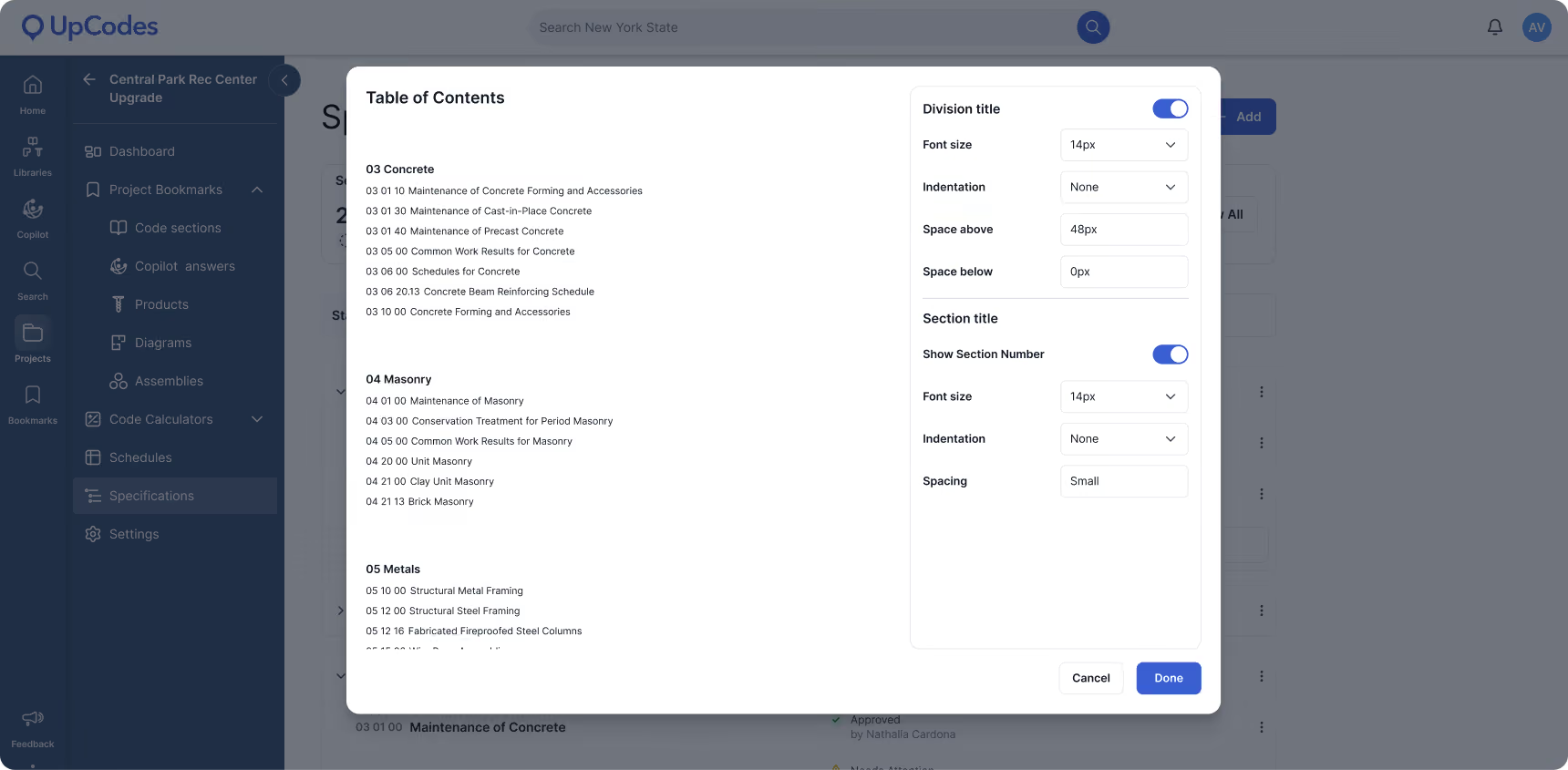
Project manuals need to do more than contain the right specification sections. They often need to follow a firm's standards for structure and presentation. We've expanded export controls so you have more say over how the finished document is organized.
For the Table of Contents, you can preview how it will appear and customize settings, including division titles, font size, indentation, and spacing.
We've also added support for custom cover sheets, so you can prepare them directly in UpCodes. Add a cover sheet to your specification, choose from one- or two-column layouts, and include it when exporting.
Together, these updates reduce the amount of formatting and document assembly needed outside of UpCodes before a specification is ready to share.
→ Try it: Add a Table of Contents or cover sheet to your specification, adjust the available formatting options, and preview the result before your next export.
Plan Review
Analyze only selected pages when reviewing a revision
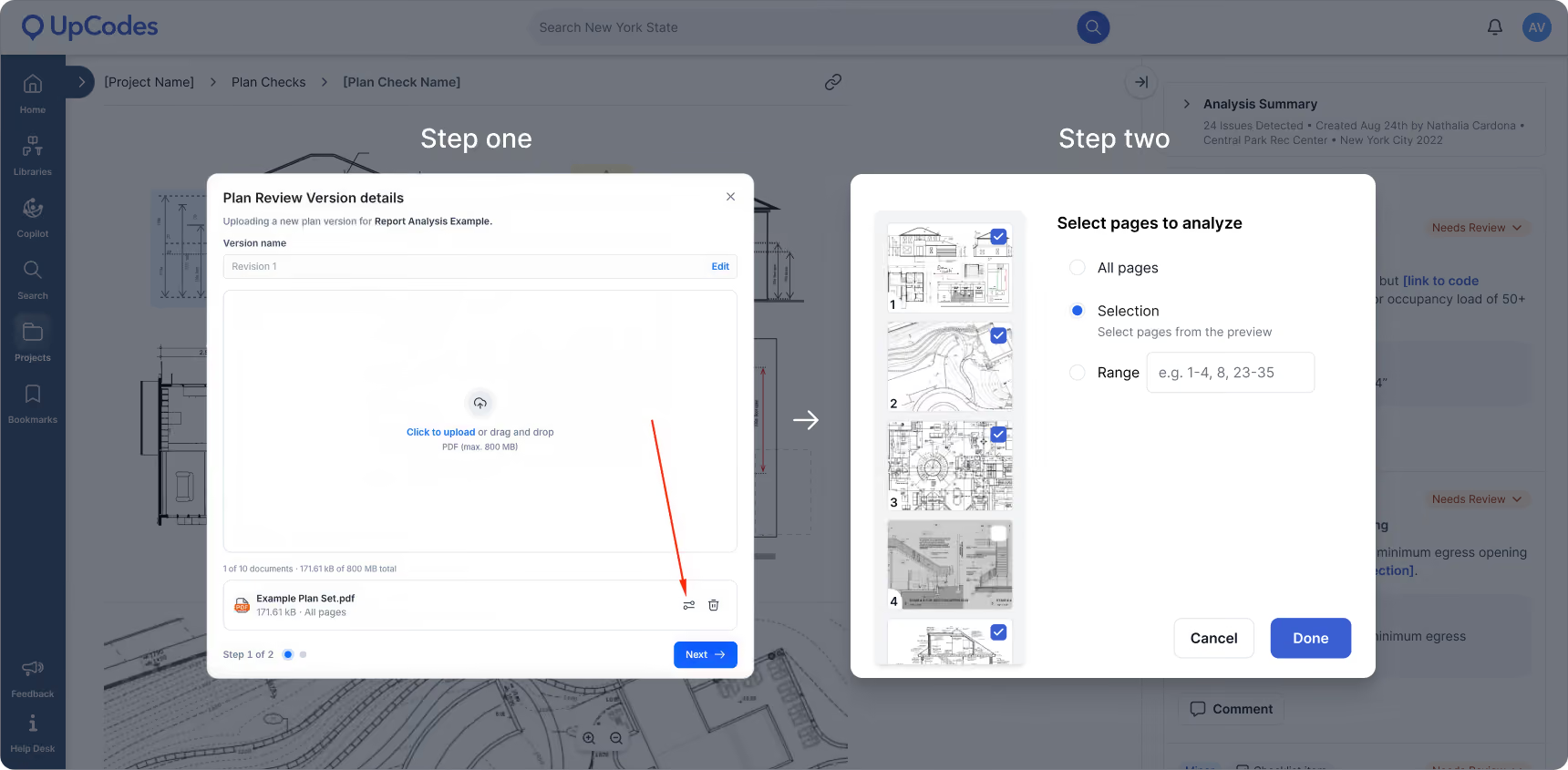
When only a handful of items have changed, you shouldn't have to re-analyze an entire plan set. You can now specify which pages Plan Review should analyze when uploading a revision, making it easier to run a targeted follow-up review after your team makes changes or when only part of an uploaded set needs to be checked again.
For example, if your original review found issues across 15 pages of a 120-page plan set, you can re-run the review on those 15 pages after making corrections instead of analyzing all 120 again. Or, if a few pages in a larger set were accidentally uploaded from an older version, you can replace and review only those affected pages.
By default, Plan Review will analyze all pages in the revision. To narrow the scope, enter individual pages, ranges, or a combination of both (e.g., 1, 3–5, 23–40). When you specify pages, those selections determine the scope of the analysis: Plan Review analyzes every page you've explicitly selected, regardless of discipline, and does not add other pages simply because they belong to the same discipline.
This gives teams more control over follow-up reviews while keeping the analysis focused on exactly what changed.
→ Try it: Upload a revision to an existing Plan Review, choose the option to specify pages, and enter the individual pages or ranges you want analyzed.
Group identical issues across multiple locations
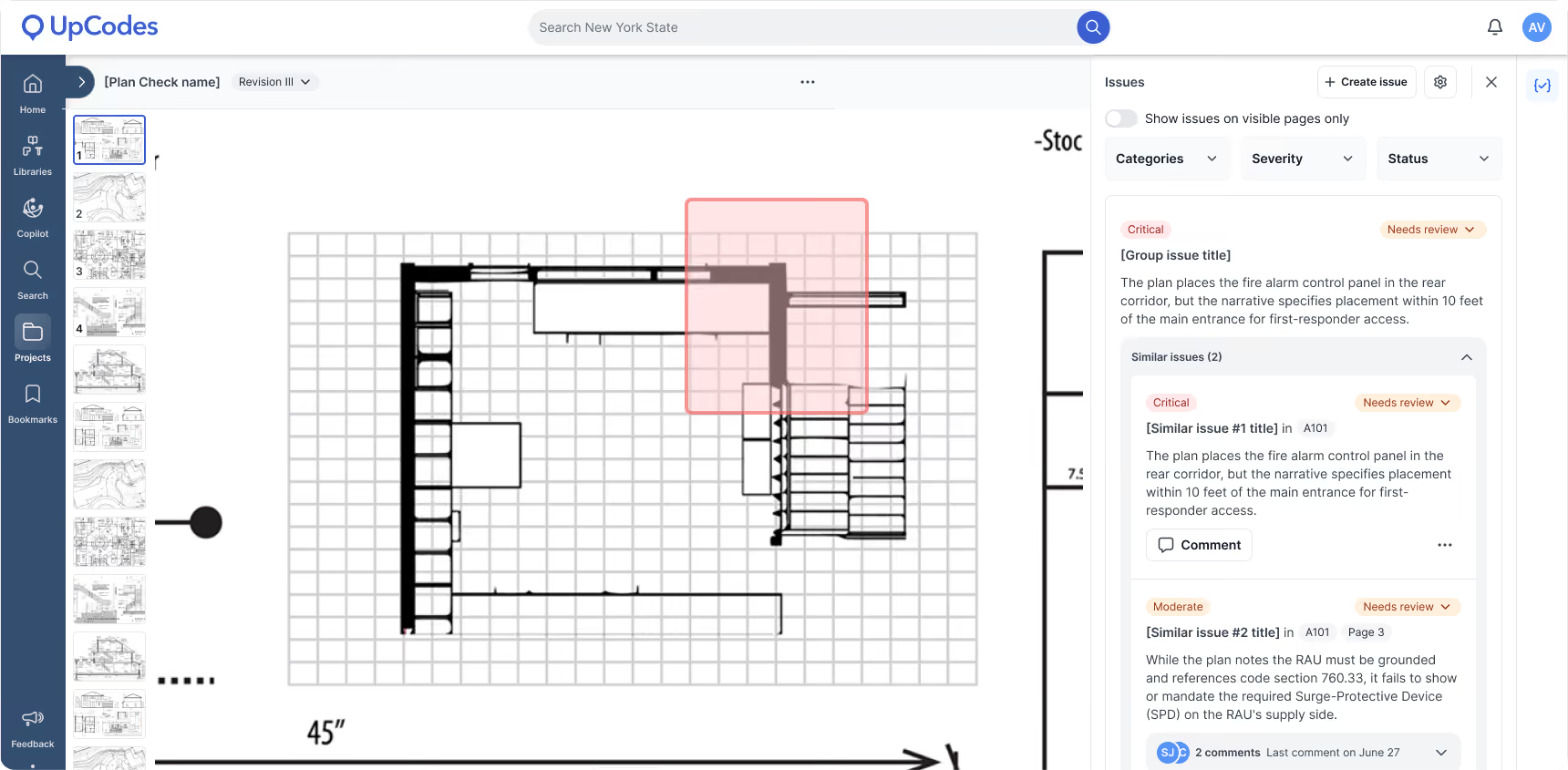
The same problem can appear repeatedly throughout a drawing set. A condition shown on a typical floor plan, for example, may trigger the same finding across several stories. Previously, Plan Review reported the condition separately at each location, leaving teams working through multiple copies of essentially the same finding.
Plan Review can now group identical issues that occur across multiple locations into a single finding. Each grouped finding displays all of the locations where the condition was found, and you can navigate to each location individually to inspect it on the drawings. This reduces duplication in the issue list while still giving you access to every place the finding applies.
Grouping is also reflected in exports. Each issue still appears individually, but its group is identified, so you can see which findings belong together. In Excel exports, you can sort or filter by group to review related findings together or focus specifically on grouped findings.
The result is an issue list that better reflects how review teams actually work through repeated conditions across a project.
→ Try it: Run Plan Review on a set with repeated findings, select a grouped issue, and move between the related locations to review each occurrence. You can also export the review to see which belong to the same group and, in Excel, sort or filter by group.
Ask Copilot about a Plan Review issue
Available across all live Plan Review types
Finding an issue is often only the beginning of the review process. Before deciding what to do next, you may need to understand why something was flagged, investigate the applicable requirements, or consider different ways to resolve it.
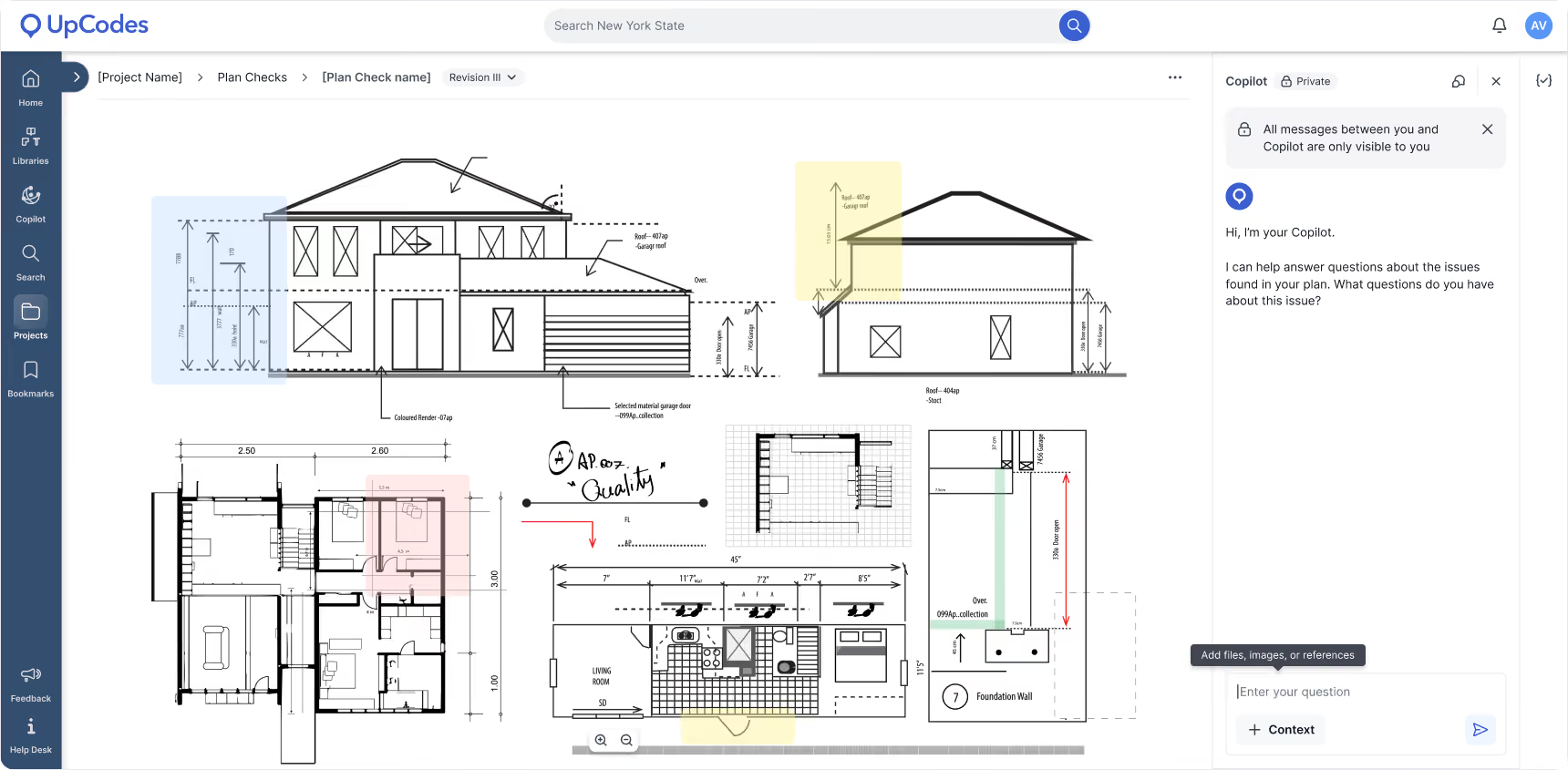
You can now open Copilot directly from a Plan Review issue instead of manually transferring the finding and its context into a separate conversation. Select the Copilot icon inside an issue to open Copilot with relevant context already attached, including the issue description, location on the sheet, drawing region, jurisdiction, and code year.
From there, you can ask questions such as:
- Why was this flagged?
- What are the possible ways to address it?
- How does this finding apply to what is shown on the drawing?
For broader questions about the overall review, such as the biggest project risks or a summary of the review's findings, use the Copilot icon in the sidebar instead. Because Copilot starts with the right context for the question you're asking, you can spend less time recreating the problem and more time investigating it.
→ Try it: Open a plan in Plan Review, select an issue, and click the Copilot icon inside the issue to ask a question about that specific finding.