Release Roundup | October 15, 2026

Plan Review
Check your plans against your specs
Drawings and specifications are often developed by different people on different timelines, so details can drift out of alignment as the project evolves.
You can now run a Specifications Coordination review to find where your plan set and specifications no longer match. Import a spec from your UpCodes project or upload a PDF or Word document. Plan Review then identifies conflicting, inconsistent, and missing requirements across both document sets.
Flagged items appear in your regular Plan Review issue list. Open any issue to see the relevant plan location and specification section side by side.
This makes it easier to catch coordination issues during QA/QC, instead of cross-referencing drawings and spec sections by hand.
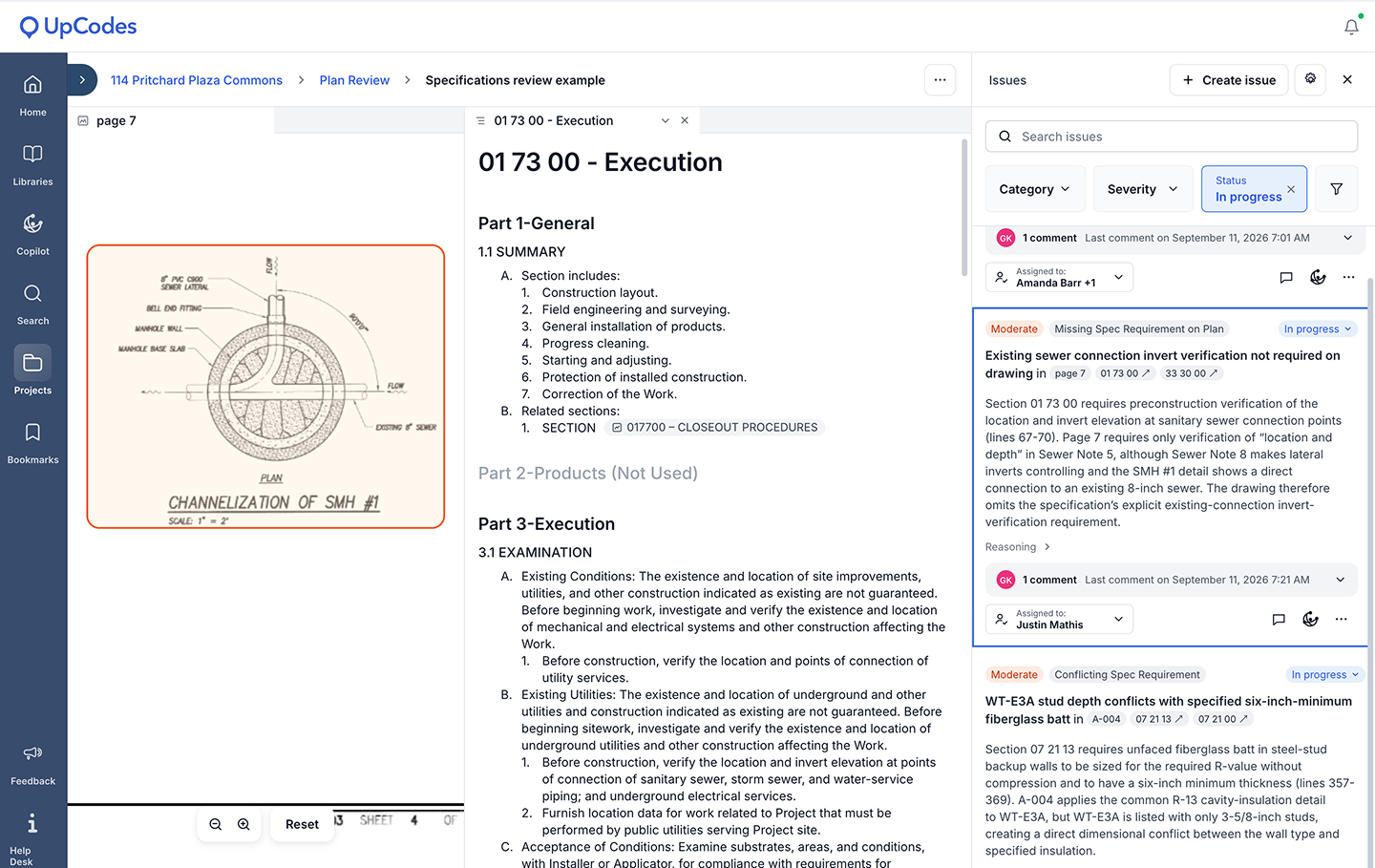
Try it: Start a new Plan Review and select Specifications Coordination as the review type. In the Add specifications step, choose Import from project to use an existing spec, or Upload from computer to add a PDF or Word document.
Start a Manual Review without running an analysis
Sometimes you don’t need Plan Review to analyze an entire drawing set. You may already know exactly what you want to investigate.
Manual Review gives you a new way to upload plans and start working with them without running a full analysis first.
Once the drawings are available, you can use Copilot to ask broad or highly specific questions about the plans and create your own manual issues as you review them. If you decide you want an analysis later, you can still run one on the plan set.
This gives teams a lighter-weight option for targeted reviews where the reviewer wants to drive the investigation rather than begin with an AI-generated issue list.
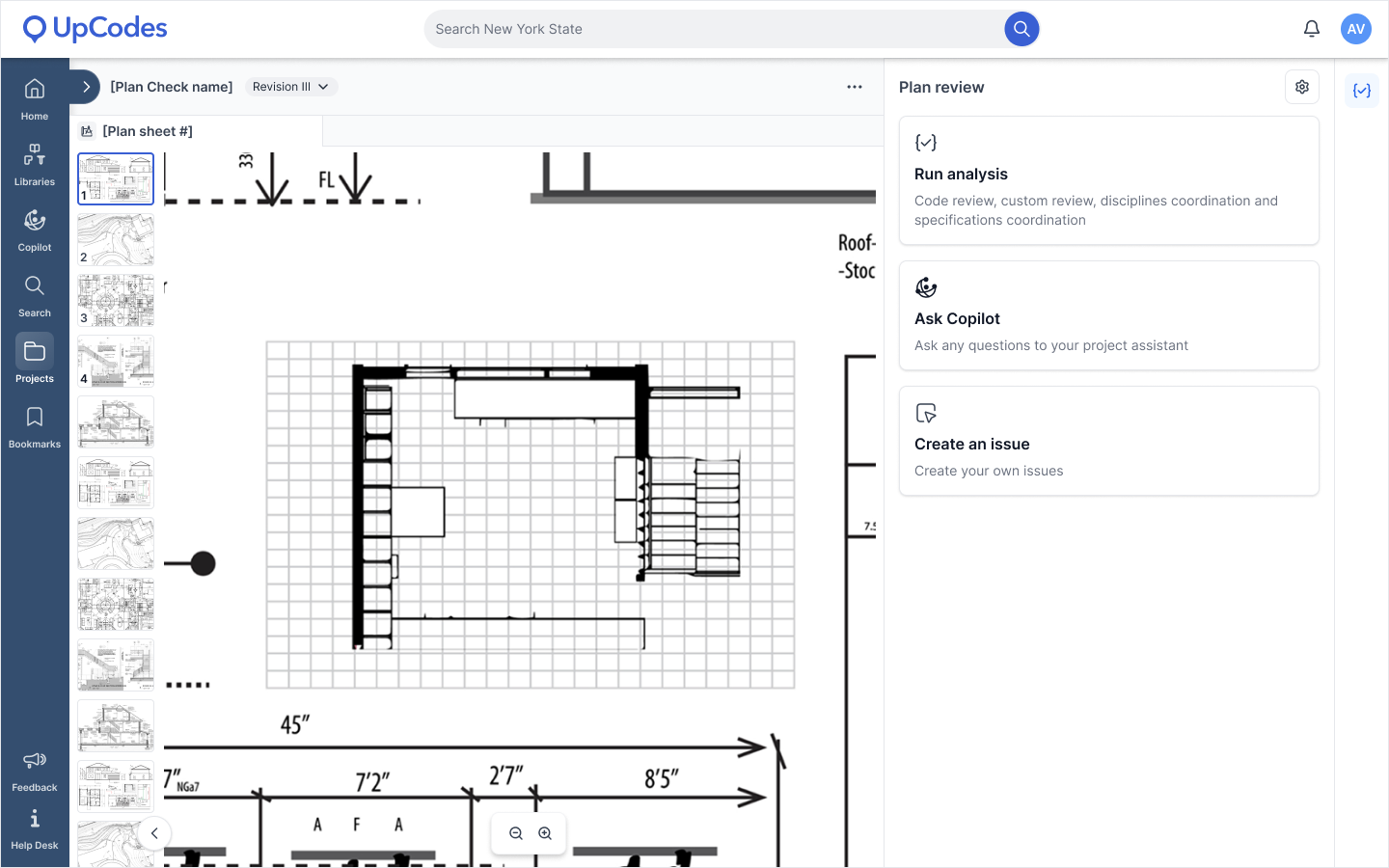
Try it: Start a new Plan Review and select Manual Review to upload your drawings without running an analysis. From there, use Copilot to investigate the areas or questions you care about and add custom issues as needed.
Review plans against multiple custom documents
Project requirements rarely live in just one file.
Custom Review now lets you select multiple reference documents for the same analysis instead of limiting the review to a single document.
That means you can bring more of the requirements relevant to the project into the same review, such as firm standards, owner criteria, zoning requirements, material requirements, or other project-specific PDFs.
As long as the selected documents stay within the total file-size limit, you can include multiple sources when setting up the analysis.
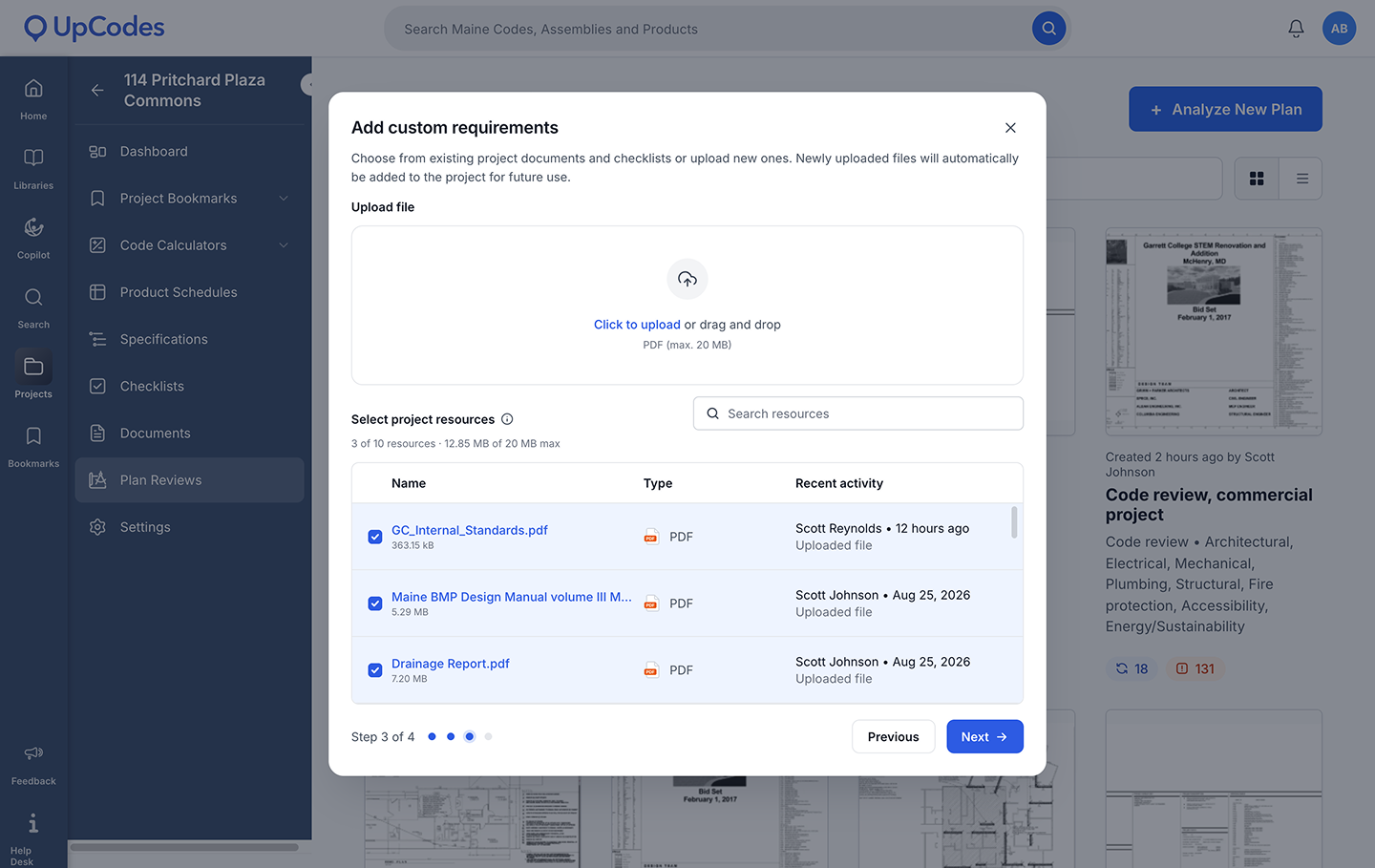
Try it: Start a Custom Review and select the reference documents you want Plan Review to use when evaluating the drawings.
Specifications
Create multiple specifications within one project
Projects don’t always have a single specification that stays the same from beginning to end.
You can now create and manage multiple specifications within the same UpCodes project.
This supports workflows like maintaining different specifications for project phases, working in multiple specification formats, or keeping separate versions for different approval processes.
A new Specifications index gives you one place to see the specs associated with the project, including the spec name, format, number of sections, and status. Project owners can also rename or delete individual specs.
Instead of creating separate projects or managing these documents outside of UpCodes, you can keep related specifications organized under the project they belong to.
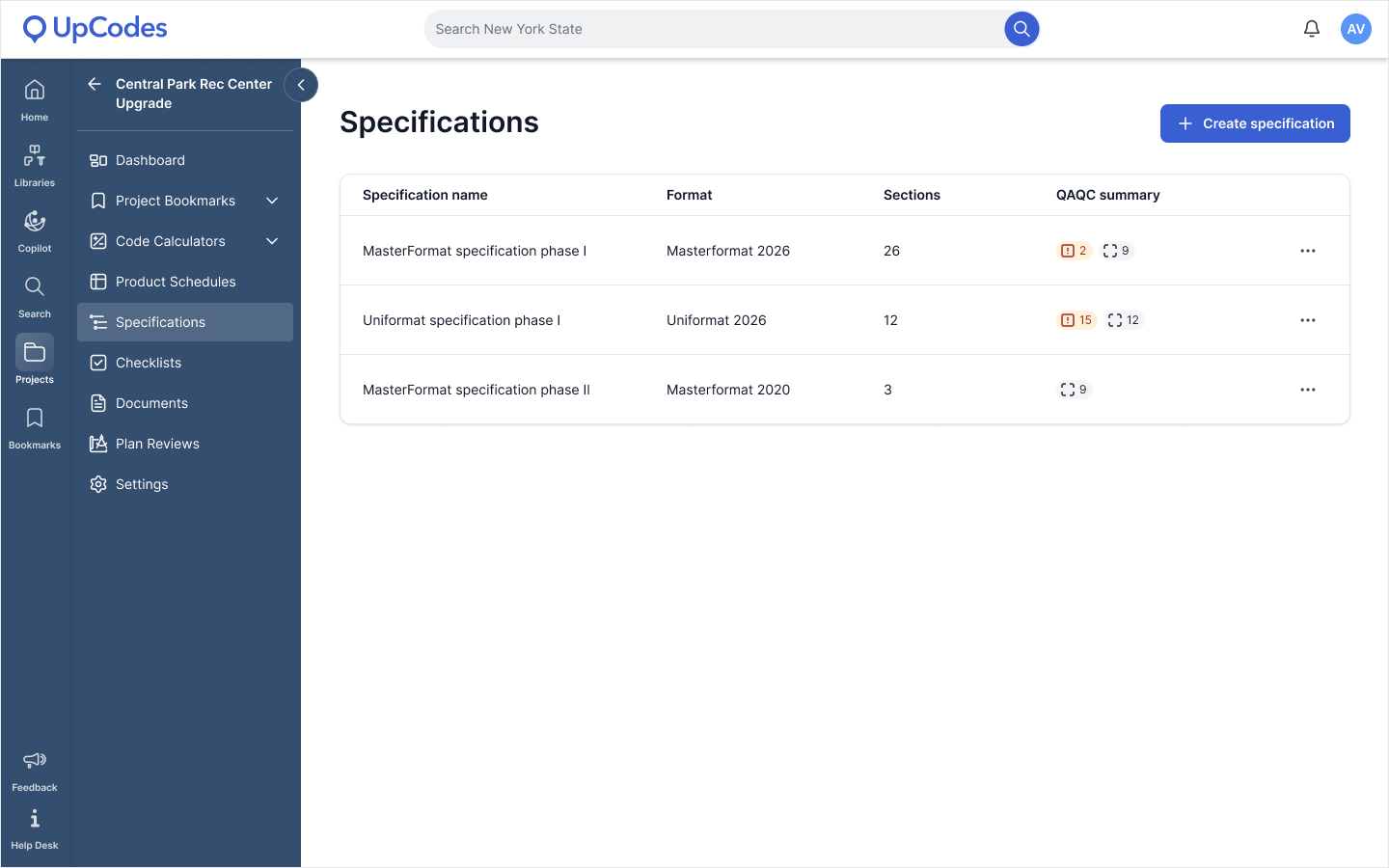
Try it: Open Specifications within a project and create an additional spec. Give each specification a distinct name so your team can quickly identify its purpose from the index.
Preview specs before exporting
Formatting a specification often involves a few rounds of exporting, opening the file, making adjustments, and exporting again just to see how the finished document will look.
You can now preview your specification before exporting it.
At the section level, switch to Preview mode directly from the editing bar to see how the section will appear using your current export style, including page size, font size, headers, footers, and other formatting settings.
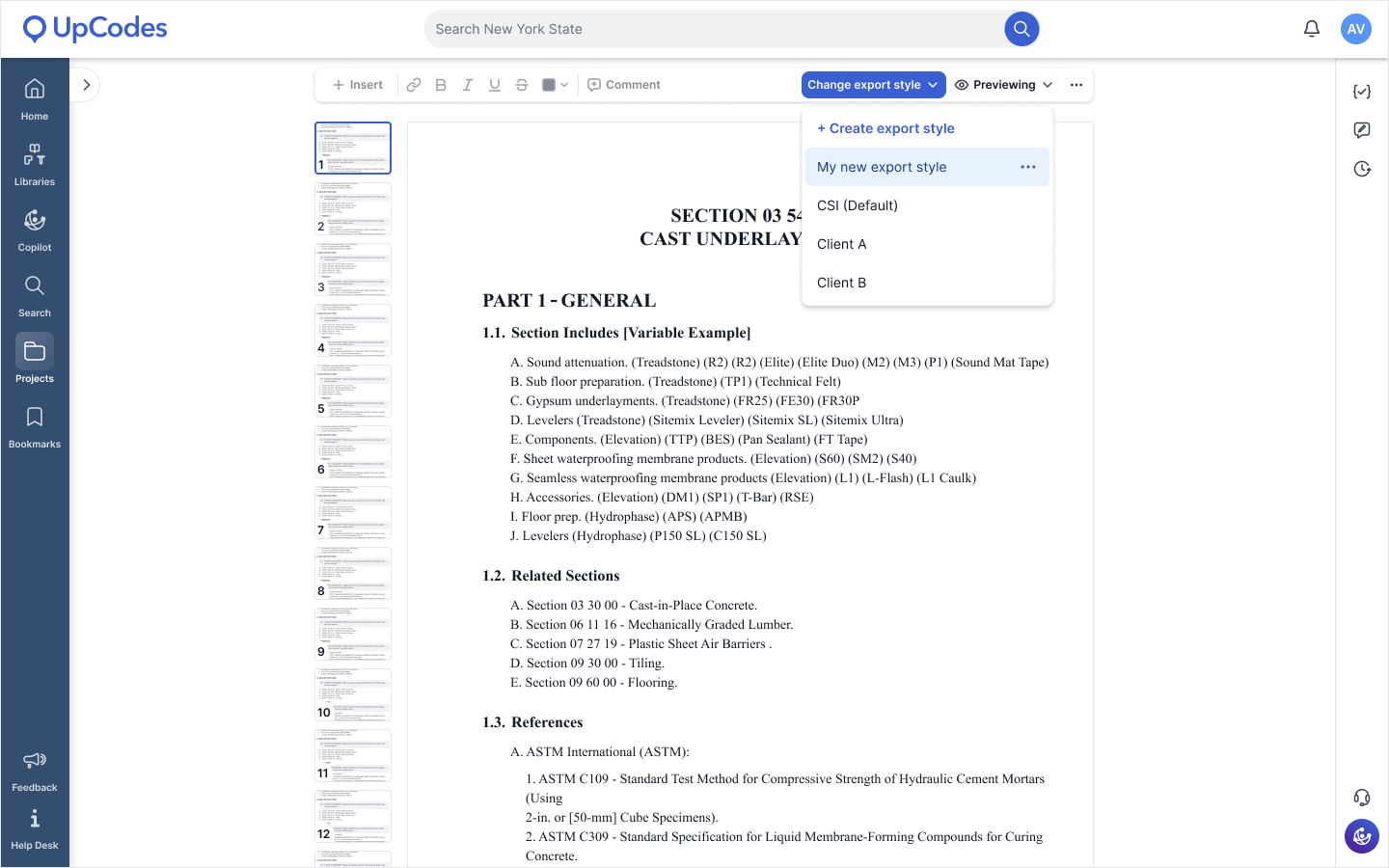
You can also preview from the export modal to check your selections before downloading the full specification. The preview reflects the content and formatting you’ve chosen for the export, including items like your cover sheet and table of contents. To keep the preview fast, it uses the first specification section as a representative view of the exported sections.
This makes it easier to catch formatting adjustments before generating the final file.
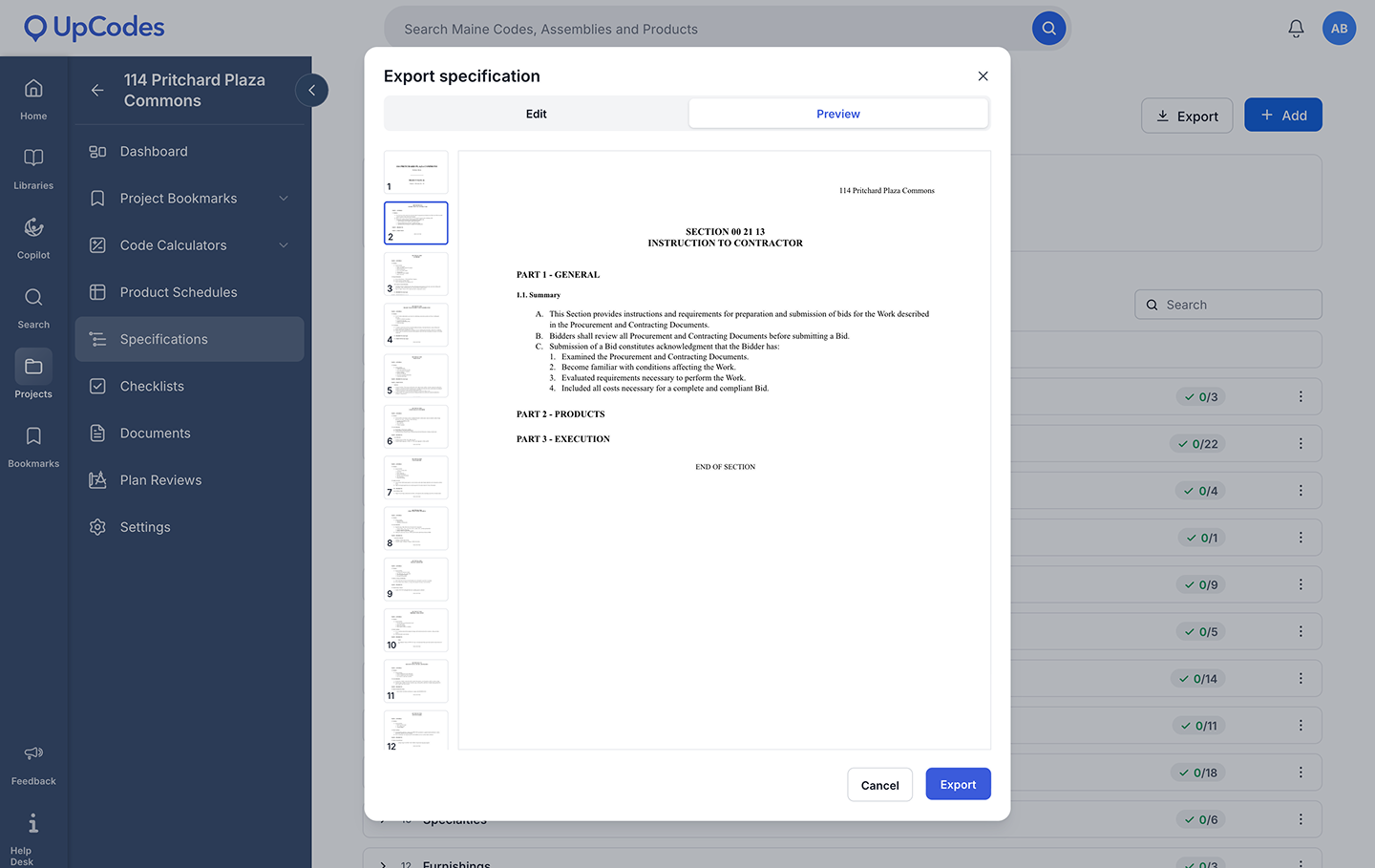
Try it: Open a specification and switch to Preview mode to check an individual section, or open the export modal and preview your current export settings before downloading the document.
Share Specs Copilot conversations with your project
Sometimes a Copilot conversation contains useful context that shouldn’t live with only one person.
Specs Copilot threads can now be set to either Private or Shared with Project.
Private conversations remain visible only to the person who created them. When you share a thread with the project, teammates with the appropriate project access can view the conversation and the context already discussed.
This gives teams a way to preserve useful Copilot research, decisions, or questions alongside the specification instead of recreating the same conversation individually.
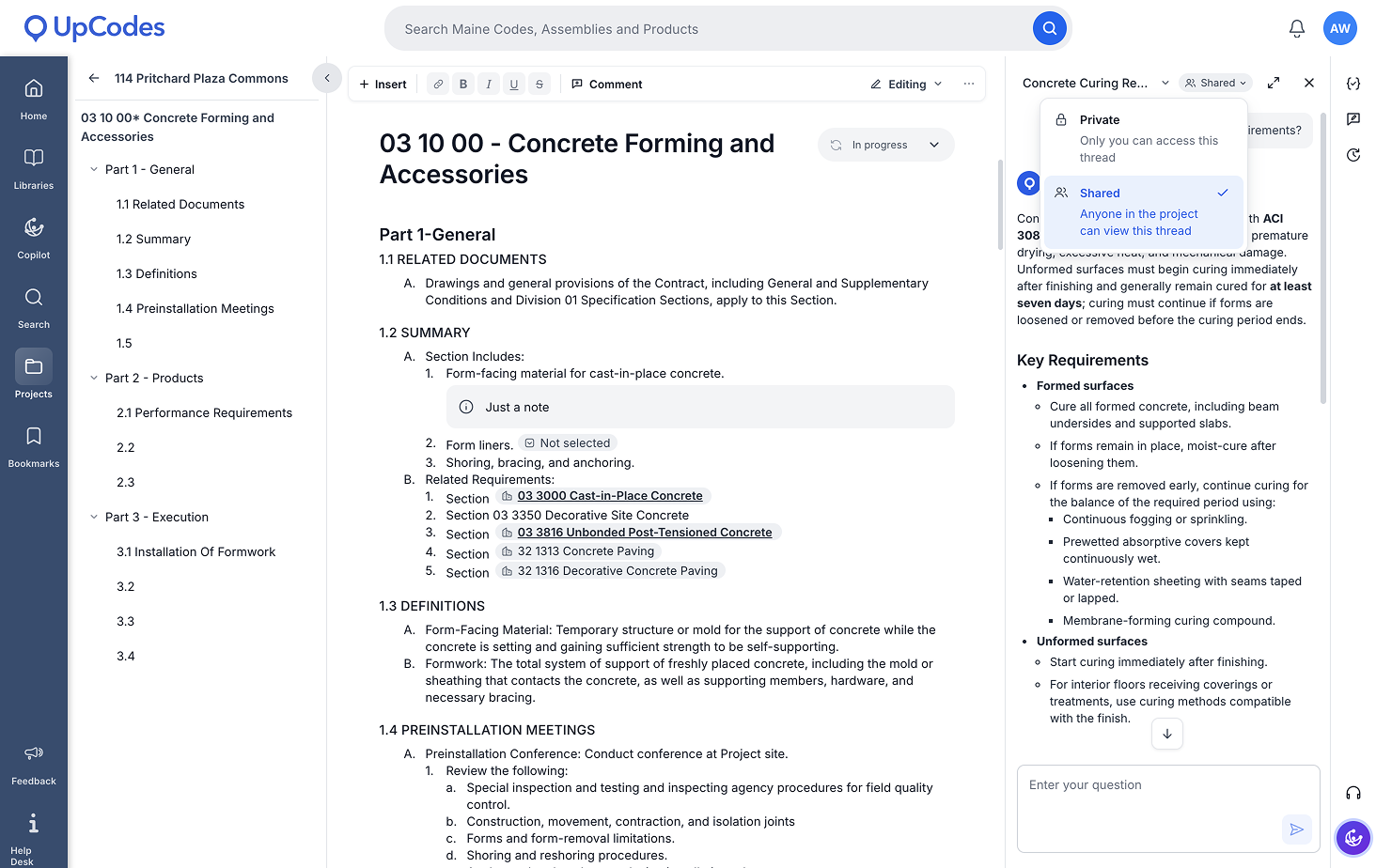
Try it: Open a Copilot conversation in Specifications and change its visibility to Shared with Project when the thread would be useful to other collaborators.
Multi-column exports for large-format specs
Larger sheet sizes give you more room to work with, but a single wide column isn’t always the most practical way to use that space.
When exporting a specification on ARCH D or ARCH E1 pages, you can now choose Use multiple columns.
When enabled, UpCodes formats the specification using familiar letter-size column widths and places multiple columns side by side across the larger sheet. Content continues sequentially from one column to the next and then onto the following sheet.
The option is enabled by default for these page sizes, but you can turn it off whenever you prefer the existing single-column layout.
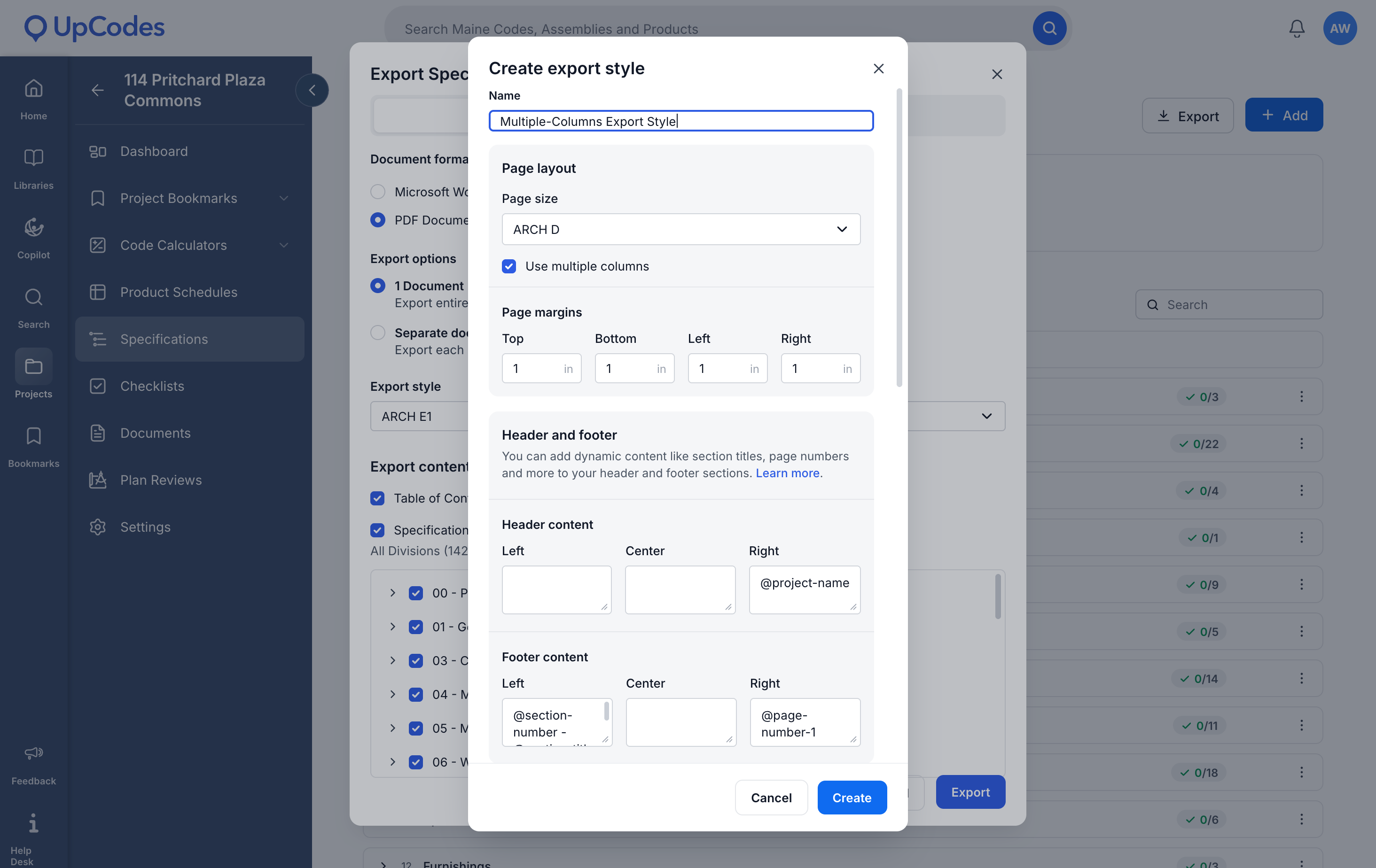
Try it: Export a specification and select Create export style. Choose ARCH D or ARCH E1 as your export page size and leave Use multiple columns selected to preview or export the new layout.


